

Compliance
Downloading a Customer Profile
GDPR requires the right of access and data portability. You can use the Lytics platform to download a JSON file of a customer's profile. You can also use the Lytics API to download a customer profile.
-
Log into your Lytics account.
-
Click Audience > Find a user.
-
Select the field you would like to search on from the drop-down menu. By default, Email is selected.
-
In the Search box, please enter the email address (or selected search term) of the customer who has requested their profile.
-
Select the desired customer from the results list.
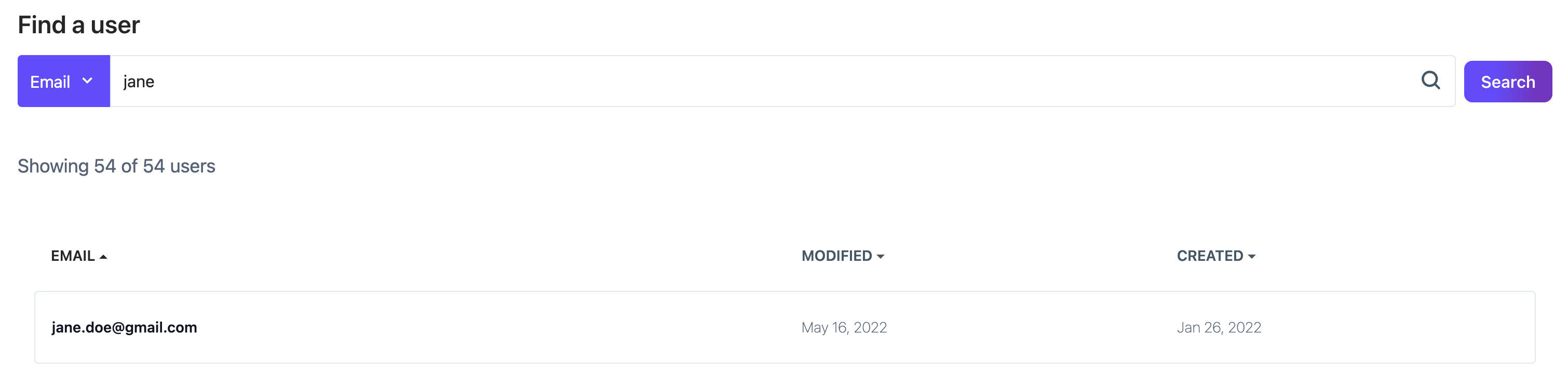
-
Click Download profile.
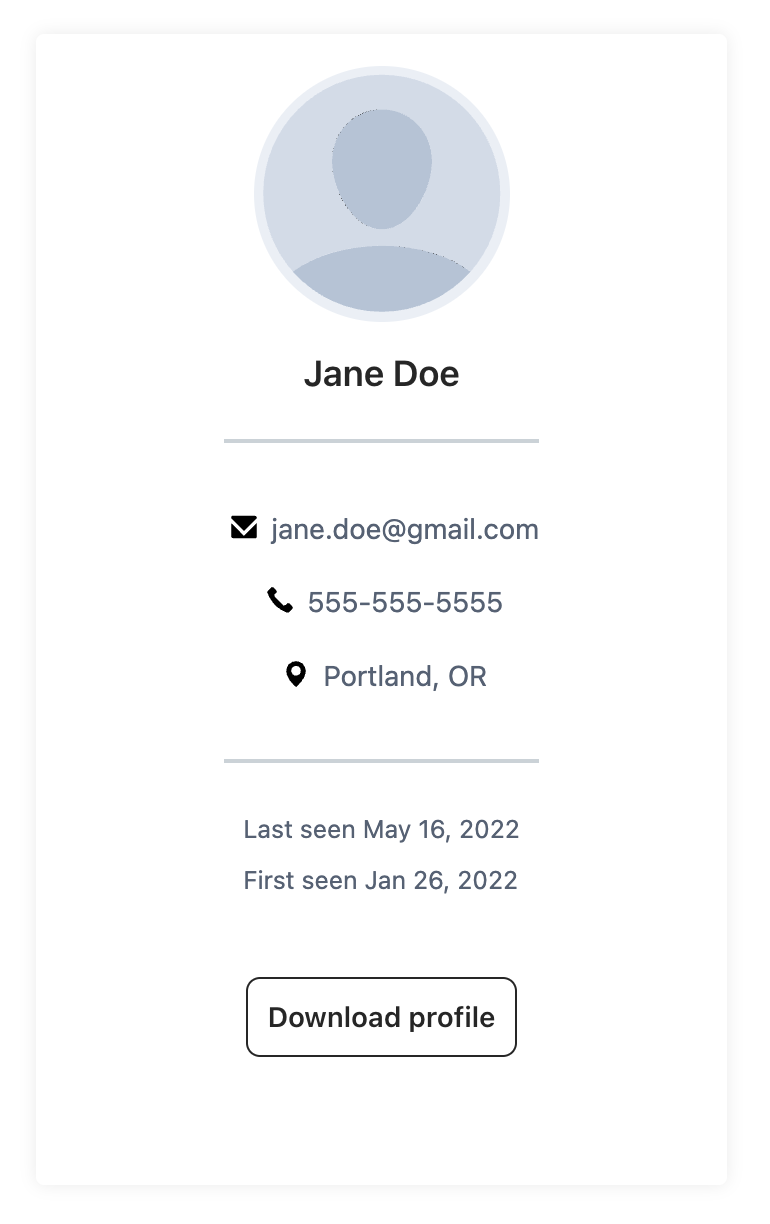
- You will receive a success message and profile.json will begin to download.
Deleting a Customer Profile
The GDPR and CCPA requirements grant the user in scope to request the removal of their personal data without undue delay. This guide provides instructions on how to delete a profile from Lytics via the Lytics UI. In addition, you can use the Lytics API to delete a customer profile. A successful deletion request of a profile using the Lytics API will not update the status of a customer in the Lytics UI until the profile has been removed from Lytics.
When a deletion request is received, Lytics removes the live profile from the profile graph database and search index, and immediately records the deletion in a suppression ledger so that the person's historical events are excluded from all subsequent data reads (exports, audience syncs, analytics replays). Physical removal of archived event data runs as a background process bounded by your account's archival data retention limit.
If new data arrives for the same identity keys after a deletion — whether from a third-party integration or because the person re-engages directly — Lytics will create a new profile. Events from before the deletion timestamp remain suppressed; only events from after the deletion form the new relationship.
-
Log into your Lytics account.
-
Click Audience > Find a user.
-
Select the field you would like to search from the drop-down menu. By default, Email is selected.
-
In the Search box, enter the customer requesting removal's email address (or selected search term).
-
Select the desired customer from the results list.
-
Click Delete user.
-
A confirmation message will pop up; click Delete this user to confirm.
- There will be a Request ID in this message to track or audit the success of the GDPR deletion request.
-
The customer's profile is immediately suppressed from all subsequent data reads. Physical archive cleanup follows in the background, bounded by your account's archival data retention limit.
Updated 5 months ago