

Microsoft Teams
Microsoft Teams: Alerts
Monitor jobs, authorizations, audiences, and queries in your Lytics instance with real-time alerts to a Microsoft Teams channel.
Integration Details
- Implementation Type: Server-side Integration
- Implementation Technique:
REST API Integration
Webhook Integration - Frequency: Real-time Integration
- Resulting data: Alerts for events related to objects in your Lytics instance
Configuration
Follow these steps to set up and configure an alerting job for Microsoft Teams in the Lytics platform.If you are new to creating jobs in Lytics, see the Destinations documentation for more information.
-
Select Microsoft Teams from the list of providers.
-
Select the Microsoft Teams Alerts job type from the list.
-
Enter a Label to identify this job you are creating in Lytics.
-
(Optional) Enter a Description for further context on your job.
-
Complete the configuration steps for your job.
-
In the Microsoft Teams Webhook URL text box, enter the webhook URL generated by the Microsoft Teams Workflows app. In Teams, open the Workflows app, use the "Post to a channel when a webhook request is received" template, then copy the generated URL. See the Microsoft documentation for more information.
Microsoft retired the legacy Office 365 connector "Incoming Webhook" in May 2026. Webhook URLs created through the old connector no longer deliver messages — re-create your webhook with the Workflows app and update the URL here. -
From the Alert Subject Type input, select choose a subject to generate alerts for.
-
From the Event Types input, select event types to alert for.
-
(optional) From the Event Subject IDs input, select the objects to alert on. If none are select, alerts will be generated for all objects of the selected Subject Type.
-
Click the Start job button to start the job

Microsoft Teams: Event Quota Alerts
Monitor the event quota in your Lytics instance with real-time alerts to a Microsoft Teams channel.
Integration Details
- Implementation Type: Server-side Integration
- Implementation Technique:
REST API Integration - Frequency:
Real-time Integration - Resulting data: Alerts for events related to objects in your Lytics instance
Configuration
Follow these steps to set up and configure an event quota alerting job for Microsoft Teams in the Lytics platform. If you are new to creating jobs in Lytics, see the Destinations documentation for more information.
-
Select Microsoft Teams from the list of providers.
-
Select the Event Quota Alerts job type from the list.
-
Enter a Label to identify this job you are creating in Lytics.
-
(Optional) Enter a Description for further context on your job.
-
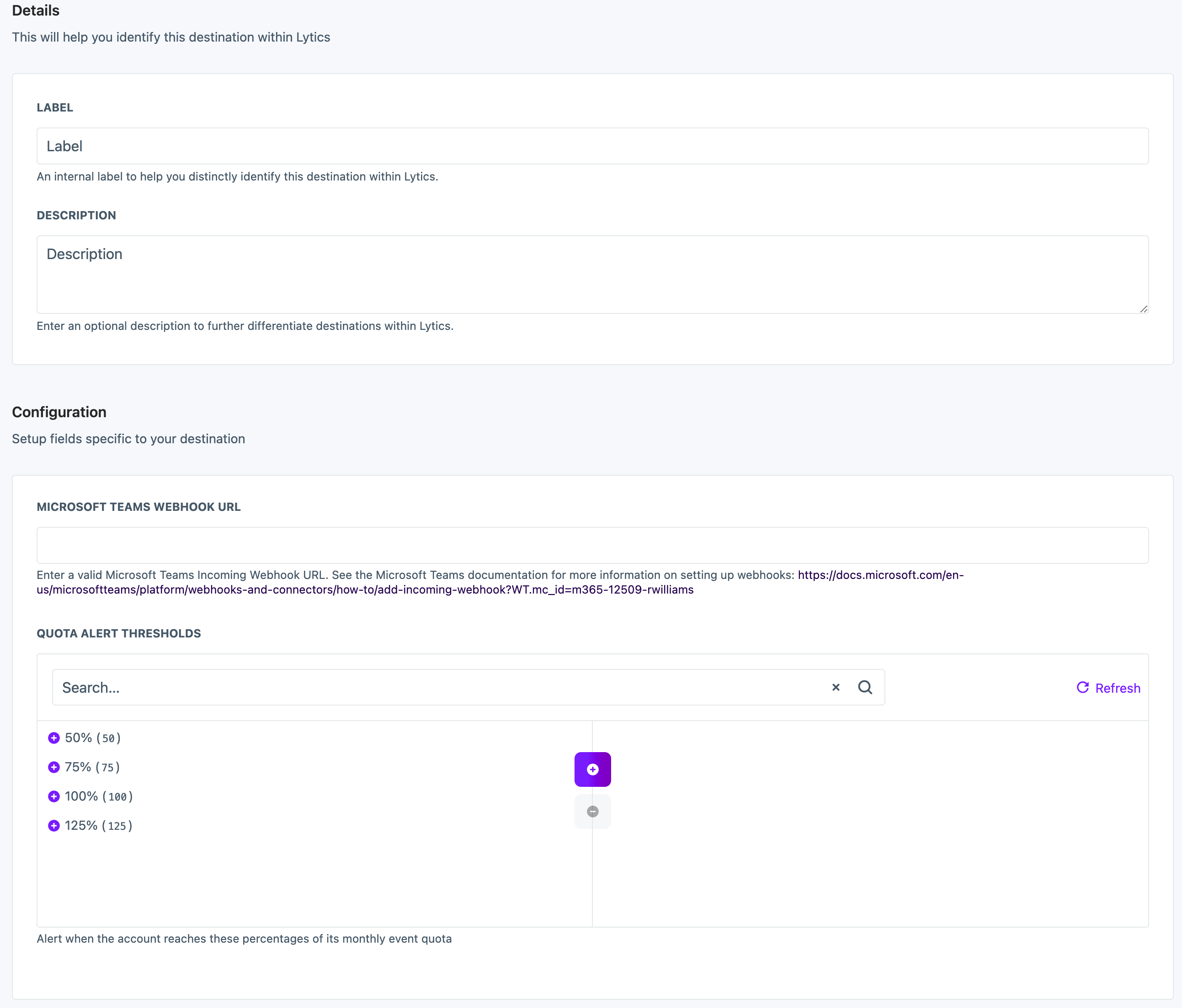
Complete the configuration steps for your job.
-
In the Microsoft Teams Webhook URL text box, enter the webhook URL generated by the Microsoft Teams Workflows app. In Teams, open the Workflows app, use the "Post to a channel when a webhook request is received" template, then copy the generated URL. See the Microsoft documentation for more information.
Microsoft retired the legacy Office 365 connector "Incoming Webhook" in May 2026. Webhook URLs created through the old connector no longer deliver messages — re-create your webhook with the Workflows app and update the URL here. -
From the Quota Alert Thresholds input, select alert percentage thresholds to send alerts on.
-
Click the Start job button to start the job
Updated 4 months ago