
Visual Schema Editor
Stage, review, and publish batches of schema changes from a guided UI — fields, mappings, and identity key ranks together.
Introduction
The Visual Schema Editor is the guided UI for making schema changes in Lytics. Instead of editing one field at a time against the live draft, you build up a named patch — a staged changeset that can contain any combination of field, mapping, and identity-key-rank changes — then preview a complete diff before publishing it as a new schema version.
The editor is backed by Schema Patches. The patch is the data model; the Visual Schema Editor is how most users will work with it day-to-day.
When to Use It
Use the Visual Schema Editor when you want to:
- Onboard a new data source — add several fields and mappings that belong together, and roll them out as a single reviewed change.
- Reorganize identity resolution — adjust identity key ranks alongside related field changes.
- Coordinate with a team — give a changeset a name and description so reviewers know what it's for.
- See what will change before it changes — inspect a property-level diff of every field and mapping in the patch, compared against the live schema.
Accessing the Editor
From the Lytics navigation, open Building Profiles → Schema → Patches. The patches list shows every patch in the account with its target table, description, creator, and timestamps. You can filter by table and sort by any column.
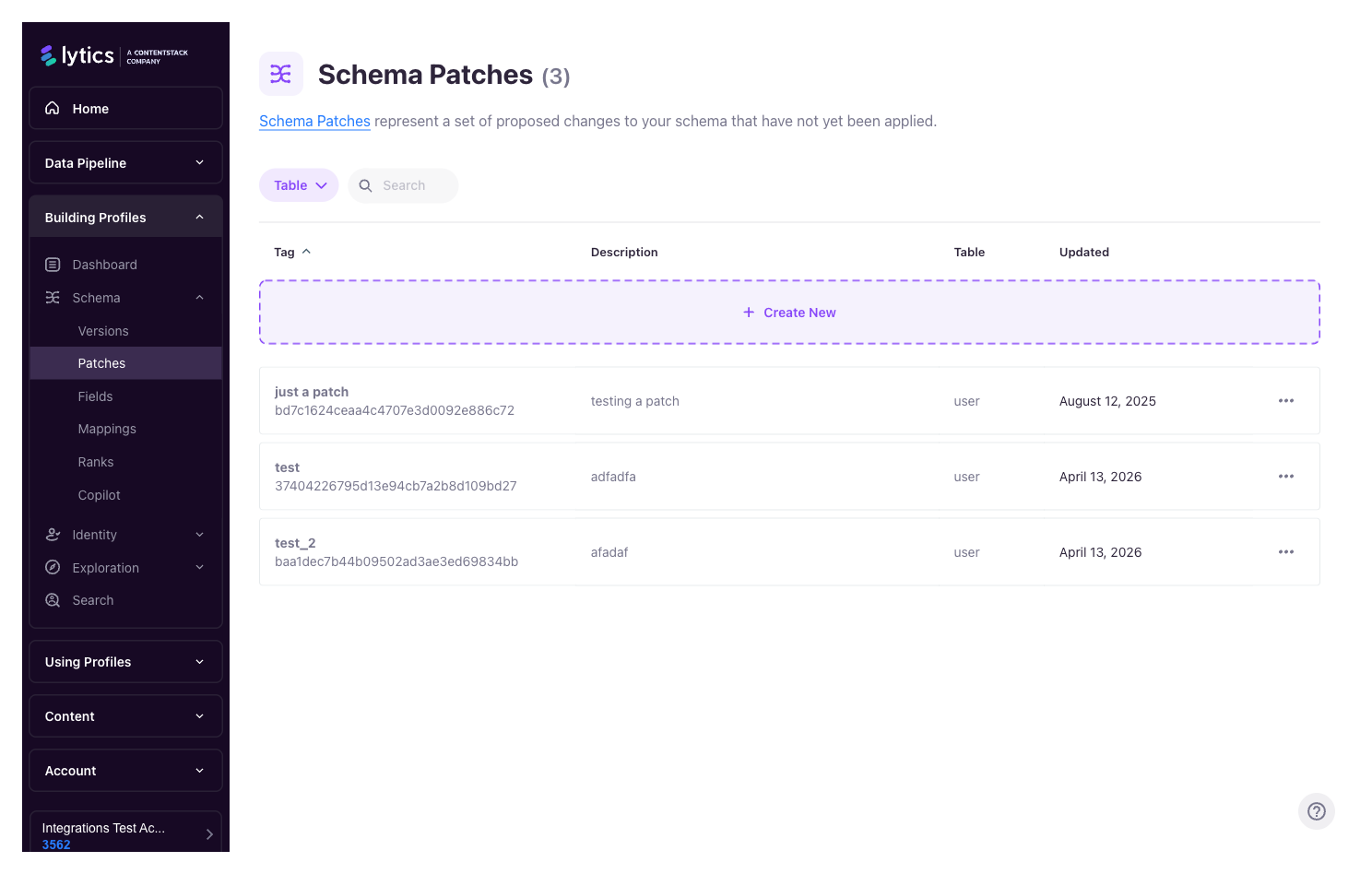
From the list you can:
- Create a new patch — name it, describe it, and choose the table it targets (e.g.,
user). - Open an existing patch — continue editing a patch someone started earlier.
- Delete a patch — discard a staged changeset you no longer need.
The Editor Layout
Opening a patch takes you into a three-step wizard — Patch Details → Map Your Data → Review & Publish — across the top of the page. The core work happens in the middle Map Your Data step, which is organized into tabs:
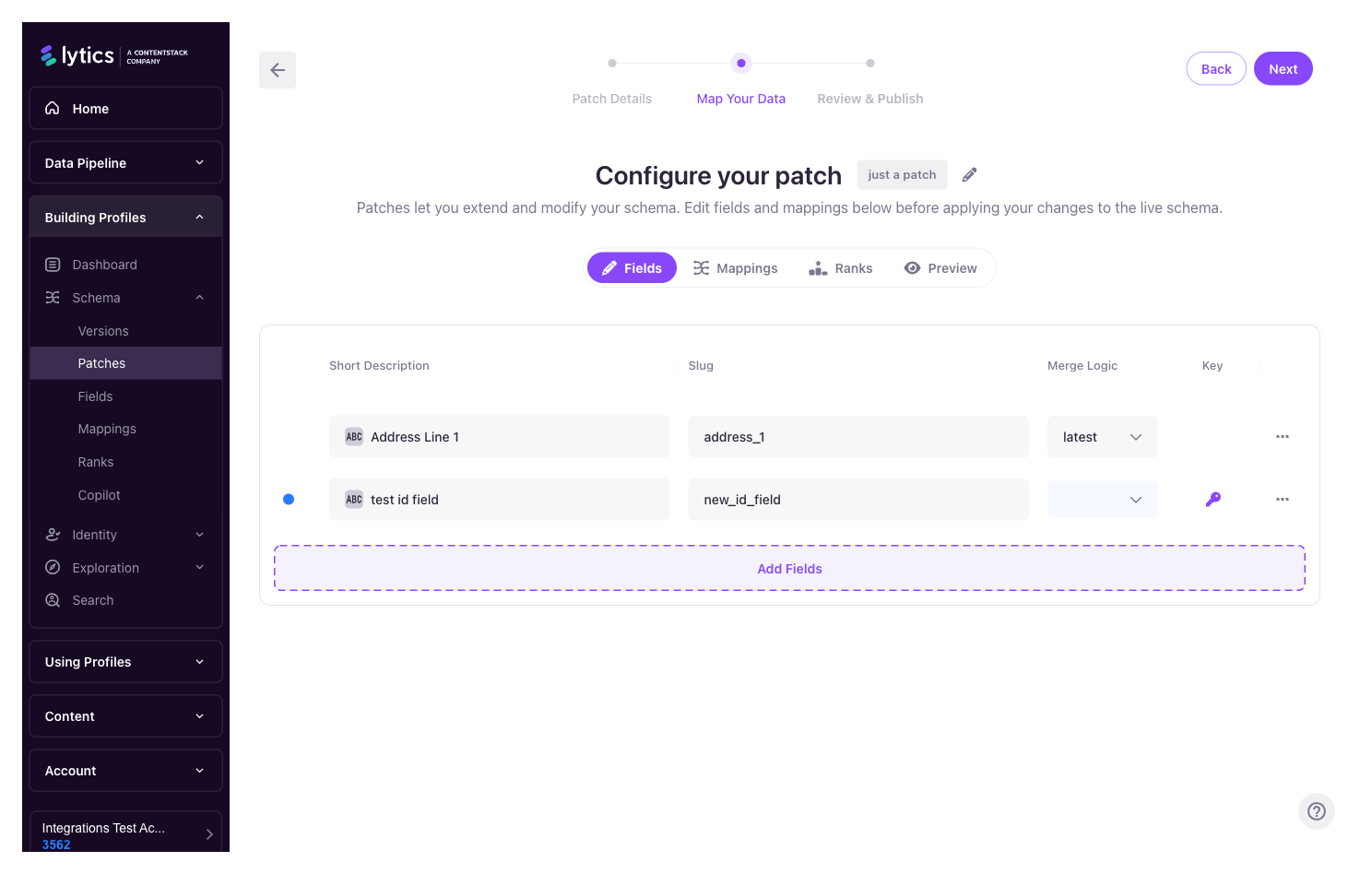
| Tab | What it's for |
|---|---|
| Fields | Add new fields, edit existing ones, or mark fields for deletion. Inline controls for data type, description, merge operator, capacity, keep days, and the other properties described in Fields & Mappings. |
| Mappings | Add or modify LQL mappings that transform incoming stream data into user fields. |
| Ranks | Reorder identity keys to change the priority used during profile resolution. See Identity Key Ranks. |
| Preview | A side-by-side diff of the patch against the live schema — every property that would change, with before/after values. |
| Advanced | A raw JSON editor for the patch, for power users. Access to this tab is permission-gated, so it only appears for users with the required role. |
Working with Fields and Mappings
Within Fields and Mappings tabs, each item carries an edit status that describes how it relates to the live schema:
| Status | Meaning |
|---|---|
new | Added in this patch — does not exist in the live schema. |
modified | Exists in the live schema, but one or more properties have changed. |
deleted | Marked for removal — will be deleted when the patch is applied. |
unmodified | Shown for context only. No changes from the live schema. |
Adding existing items to a patch
To modify a field or mapping that already exists, use the Add search. Results can be filtered by type, identifier, stream, and category. Editable items surface first; non-editable items (e.g., system fields) are shown but cannot be selected. Use Select All to pull a whole filtered set into the patch at once.
"Add related" shortcuts
Click a field in the patch to jump into the mapping selector, pre-filtered to mappings that use that field. Click a mapping to find the field it writes to. This makes it straightforward to build complete, self-consistent changesets.
Undoing a change
Each item in the patch can be reverted independently without discarding the rest of the patch. For example, if you've added three fields and decide one of them isn't ready, remove that one field's changes and keep the other two.
If you don't set a
managed_byvalue when adding a field or mapping to a patch, it defaults to the current user.
Previewing a Patch
The Preview tab is the gate between "staged" and "published." It shows:
- Every field, mapping, and rank change in the patch, grouped by type.
- Property-level before/after values for modified items.
- Status pills on each item (
Added,Modified,Deleted) so you can scan the shape of the change at a glance.
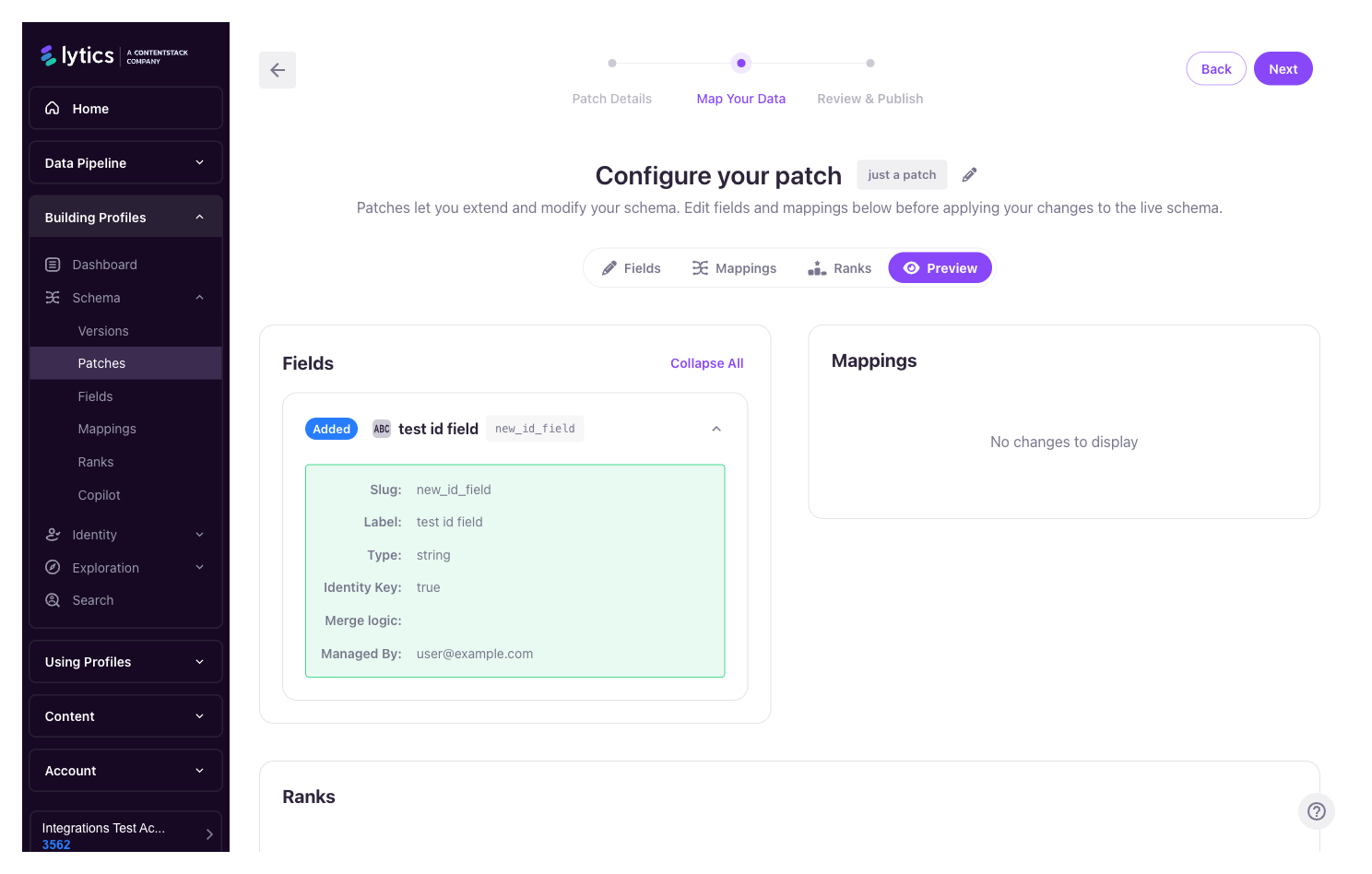
Nothing in this tab affects the live schema — it is purely a read-only review surface.
Publishing a Patch
When you're satisfied with the preview, publish the patch. This creates a new schema version containing all of the patch's changes, and incoming data is processed against the updated schema from that point forward.
If something goes wrong after publishing, revert to a previous version using the standard schema version history — no need to manually undo each change.
Patches that target the
contenttable publish immediately on apply, without a separate review step. User-table patches follow the full stage → preview → publish workflow.
Permissions
- Create / edit a patch — requires the
schema:editpermission. - Delete a patch — requires the
schema:deletepermission. - Advanced tab (raw JSON) — separately gated for power users.
Managed Workflows and Patches
For accounts with patches enabled, LQL workflows that need to modify the schema (for example, managed integrations that add new fields as they discover them in incoming data) will create a patch for you to review, rather than writing directly into the draft. You'll see these patches appear in the list with an identifying tag; open, review, and publish them as you would any manually-created patch.
Related
- Schema Patches — The underlying patch data model and API
- Schema Versions — Publishing and reverting schema versions
- Fields & Mappings — Managing individual fields and mappings
- Identity Key Ranks — Identity key ranking and priority
Updated 21 days ago