

Algolia
Overview
Algolia is a search and discovery platform that enables personalized search results and product recommendations. The Algolia Personalization API allows you to associate user segment memberships with Algolia user profiles to tailor search and recommendation experiences.
Integrating Lytics with Algolia enables bidirectional synchronization between the two platforms. You can import Algolia user profiles, affinities, and segments into Lytics to enrich behavioral profiles and build audiences. You can then export Lytics audiences back to Algolia to personalize search results and product recommendations in real time.
Authorization
Before setting up the integration, ensure you have:
- An Algolia application configured in the appropriate region (US or EU).
- An Algolia API Key with search, browse, and recommendations permissions.
- Access to the Lytics Authorizations page.
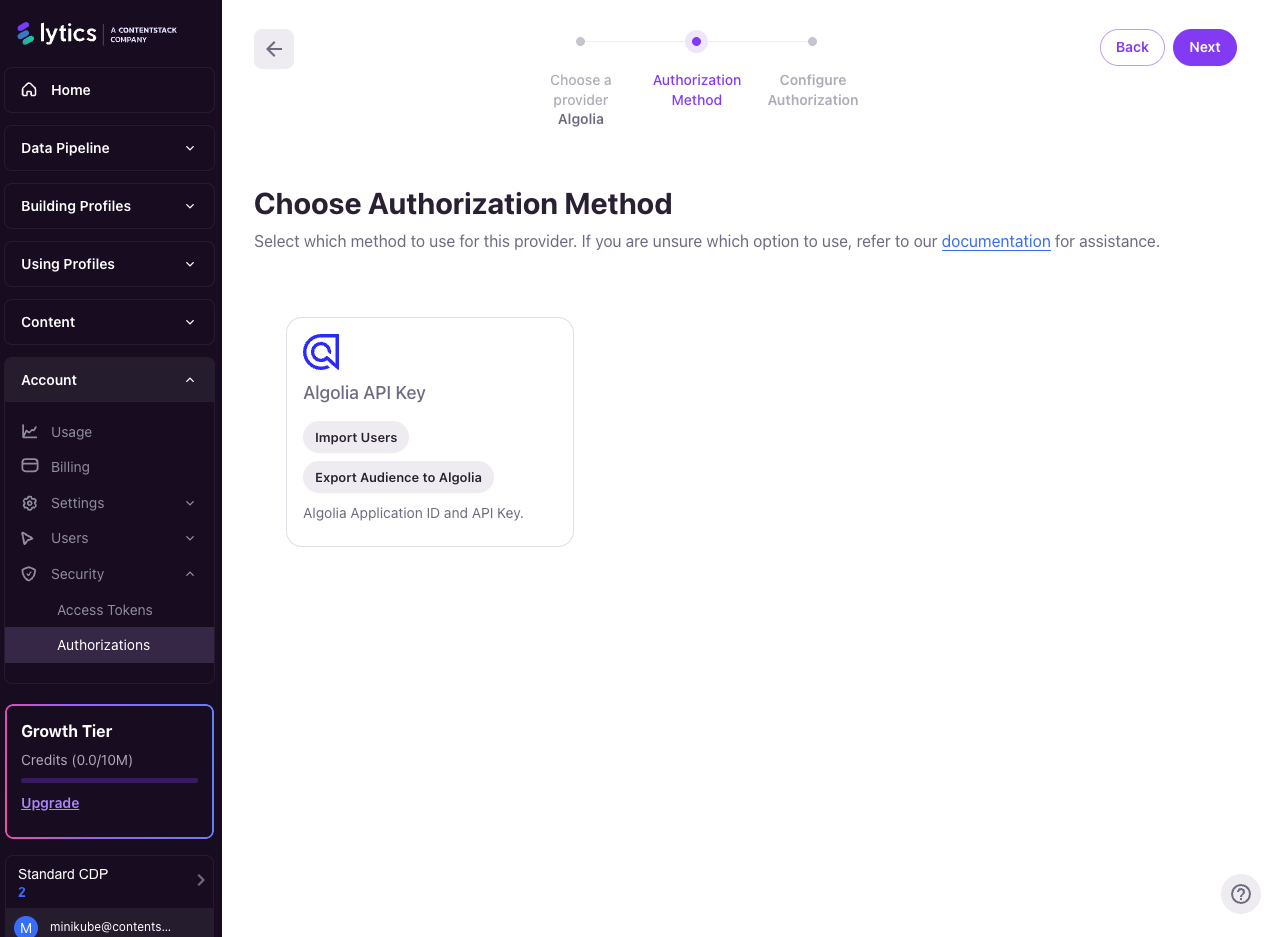
- Select Algolia from the list of providers.
- Select the Full Auth method for authorization.
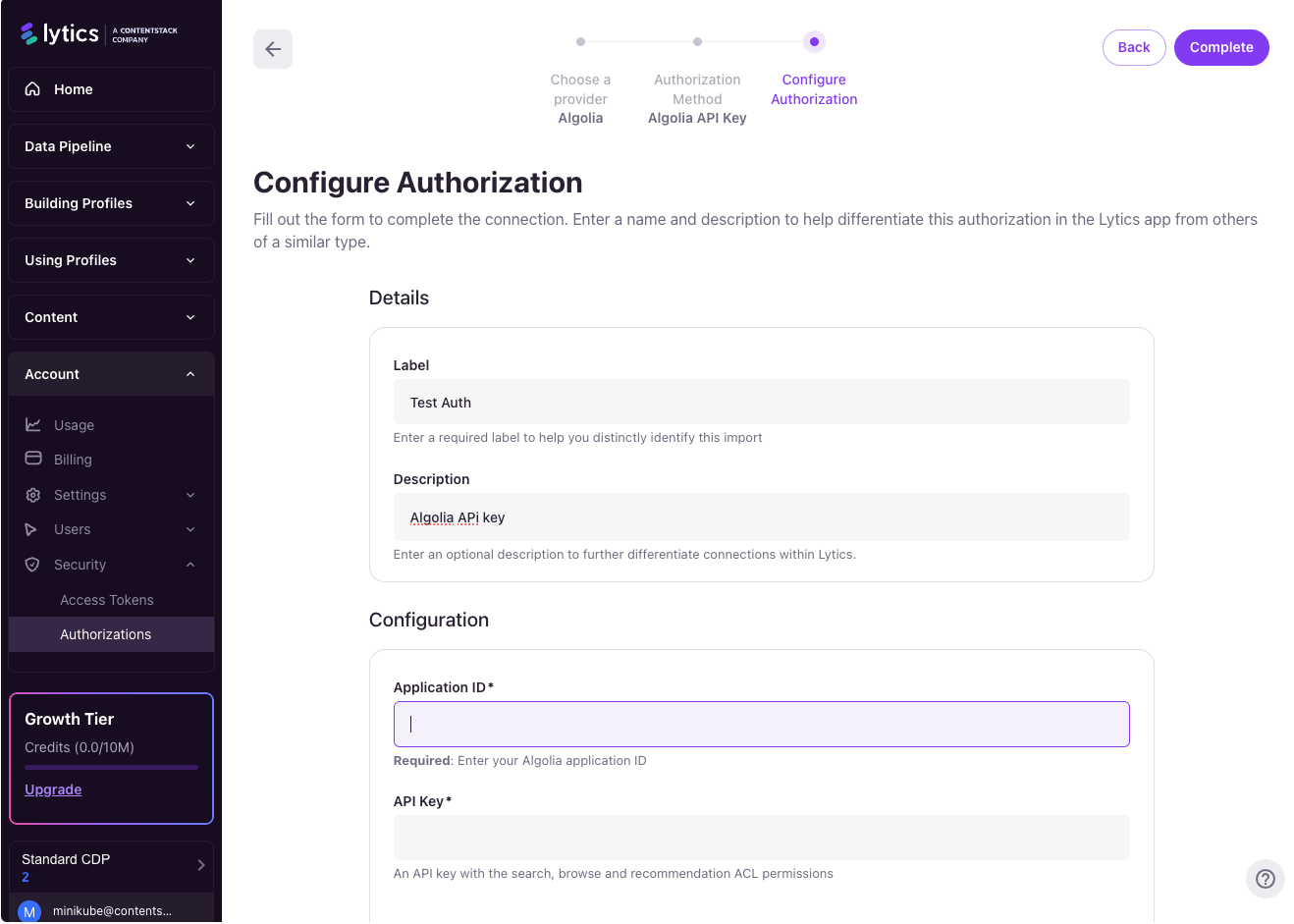
- Enter a Label to identify your authorization.
- (Optional) Enter a Description for further context on your authorization.
- Enter your Algolia Application ID.
- Enter your Algolia API Key. The credentials will be validated on save — if a validation error is returned, verify your credentials and retry.
- Click Save Authorization.
Import User Data from Algolia
Import Algolia user profiles, affinities, and segments into Lytics to enrich user profiles and build behavioral audiences powered by Algolia personalization data.
Integration Details
- Implementation Type: Server-side Integration.
- Implementation Technique: Algolia Personalization API → Lytics profile stream.
- Frequency: Initial full import (optional date filter) + continuous hourly sync as a Batch Integration.
Each run of the import job proceeds as follows:
- Queries the Algolia Personalization API for user profiles (paginated).
- Extracts user identifiers, affinities (name, value, score), segments (ID, source), and the last updated timestamp.
- Transforms the data into Lytics user profile fields.
- Writes the data into a Lytics user stream to enrich profiles.
Fields
The following fields are imported from Algolia into Lytics user profiles:
| Algolia Field | Lytics User Field | Description | Type |
|---|---|---|---|
userID | algolia_user_id | Algolia User ID | string |
type | algolia_user_type | Algolia User Type | string |
affinities[].name | algolia_affinities_name | Affinity Names | []string |
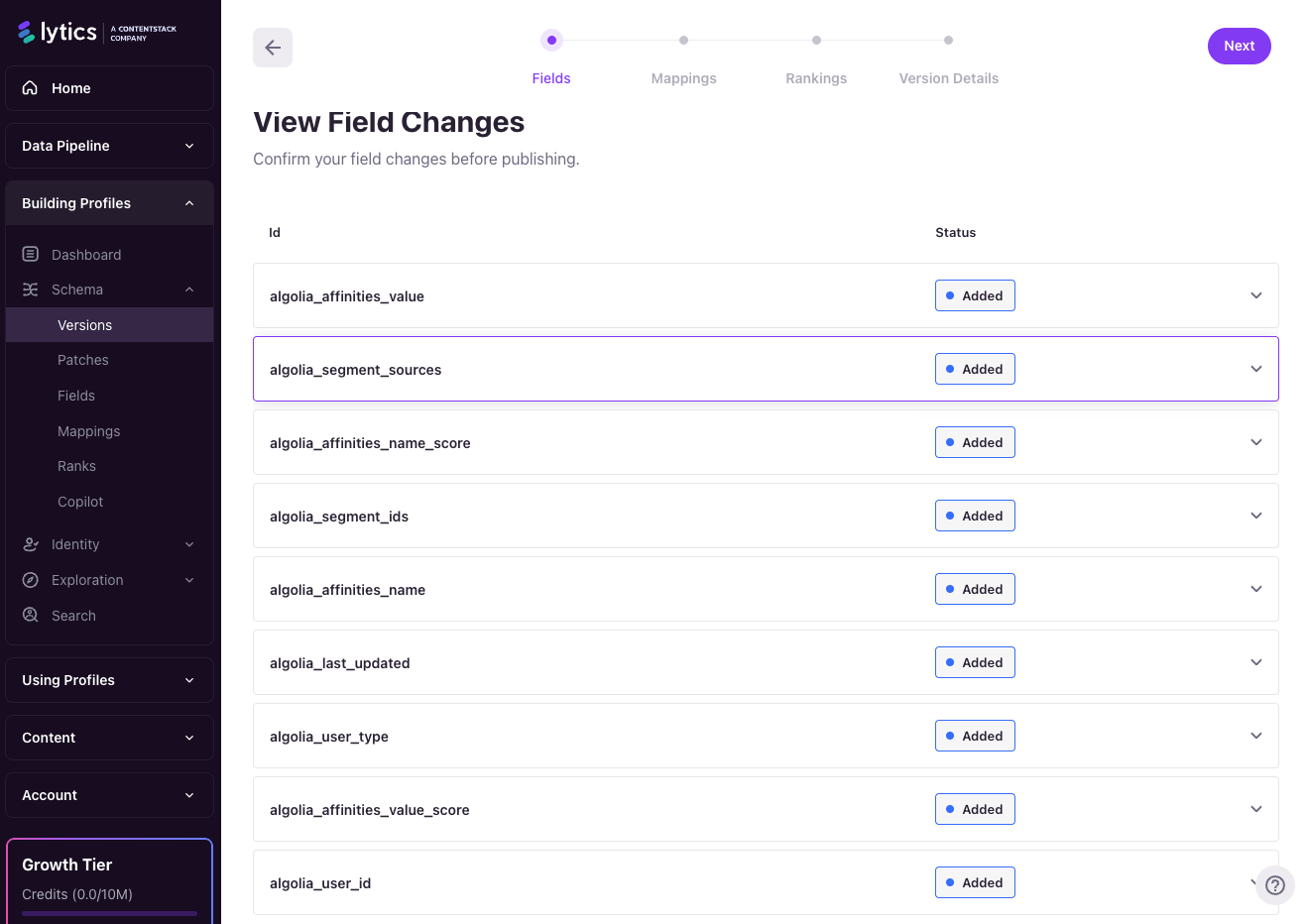
affinities[].value | algolia_affinities_value | Affinity Values | []string |
affinities[].score | algolia_affinities_name_score, algolia_affinities_value_score | Affinity Scores by Name and Value | map[string]float |
segments[].id | algolia_segment_ids | Algolia Segment IDs | []string |
segments[].source | algolia_segment_sources | Algolia Segment Sources | []string |
lastUpdatedAt | algolia_last_updated | Last Updated Timestamp | date |
Configuration
Follow these steps to set up an Import User Data job for Algolia.
- Select Algolia from the list of providers.
- Select the Import User Data job type from the list.
- Select the Authorization you would like to use or create a new one.
- Enter a Label to identify this job in Lytics.
- (Optional) Enter a Description for further context on your job.
- Go to the Jobs page and search for the Algolia Import job.
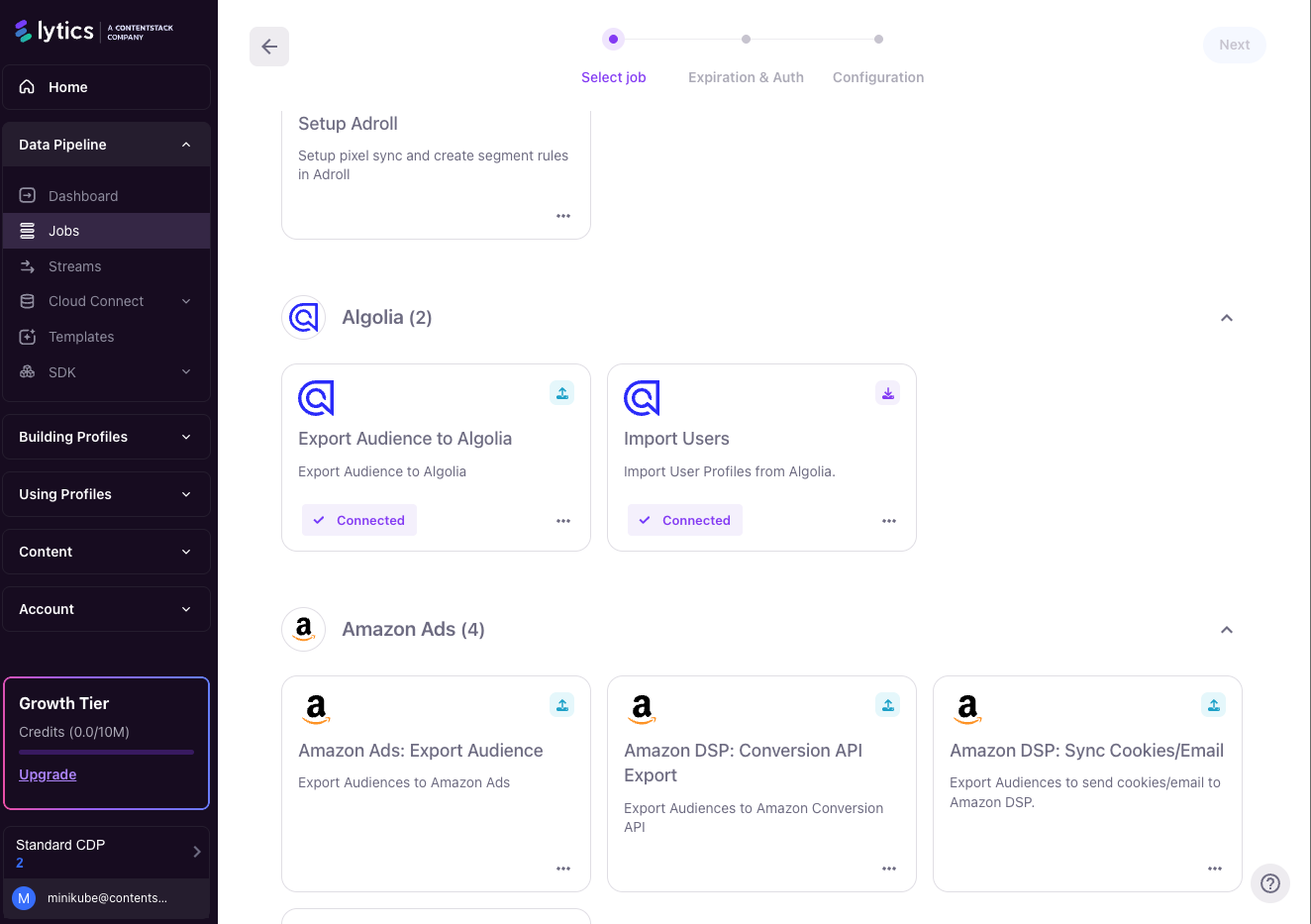
- Create an instance of the Import job and configure it using the authorization created above.
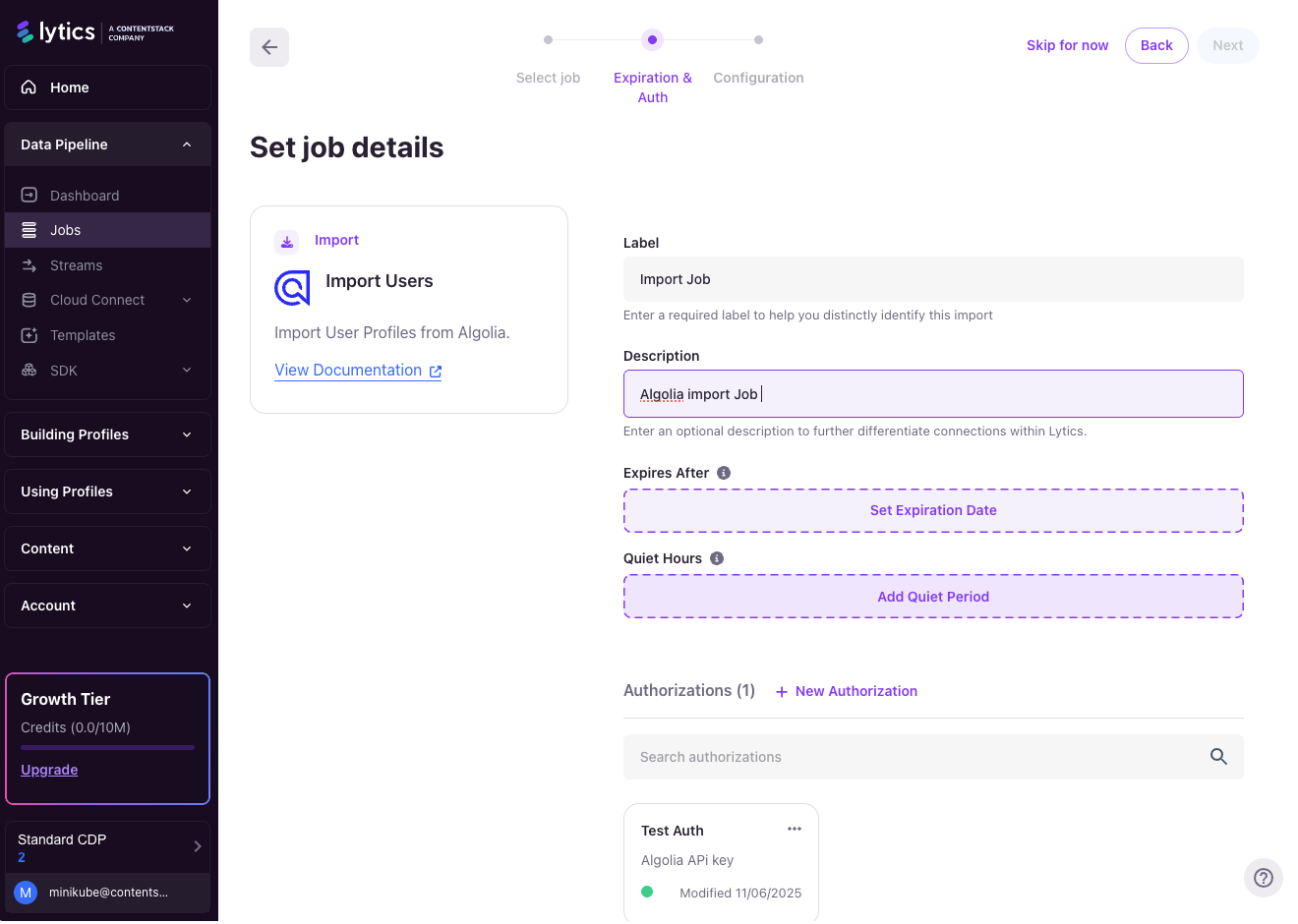
- In the Start Date field, enter a date to limit which users are imported. Only users with a
last_updated_atvalue on or after this date will be imported. Leave blank to import all users. - Check the Keep Updated checkbox to continuously sync new and updated users from Algolia every hour.
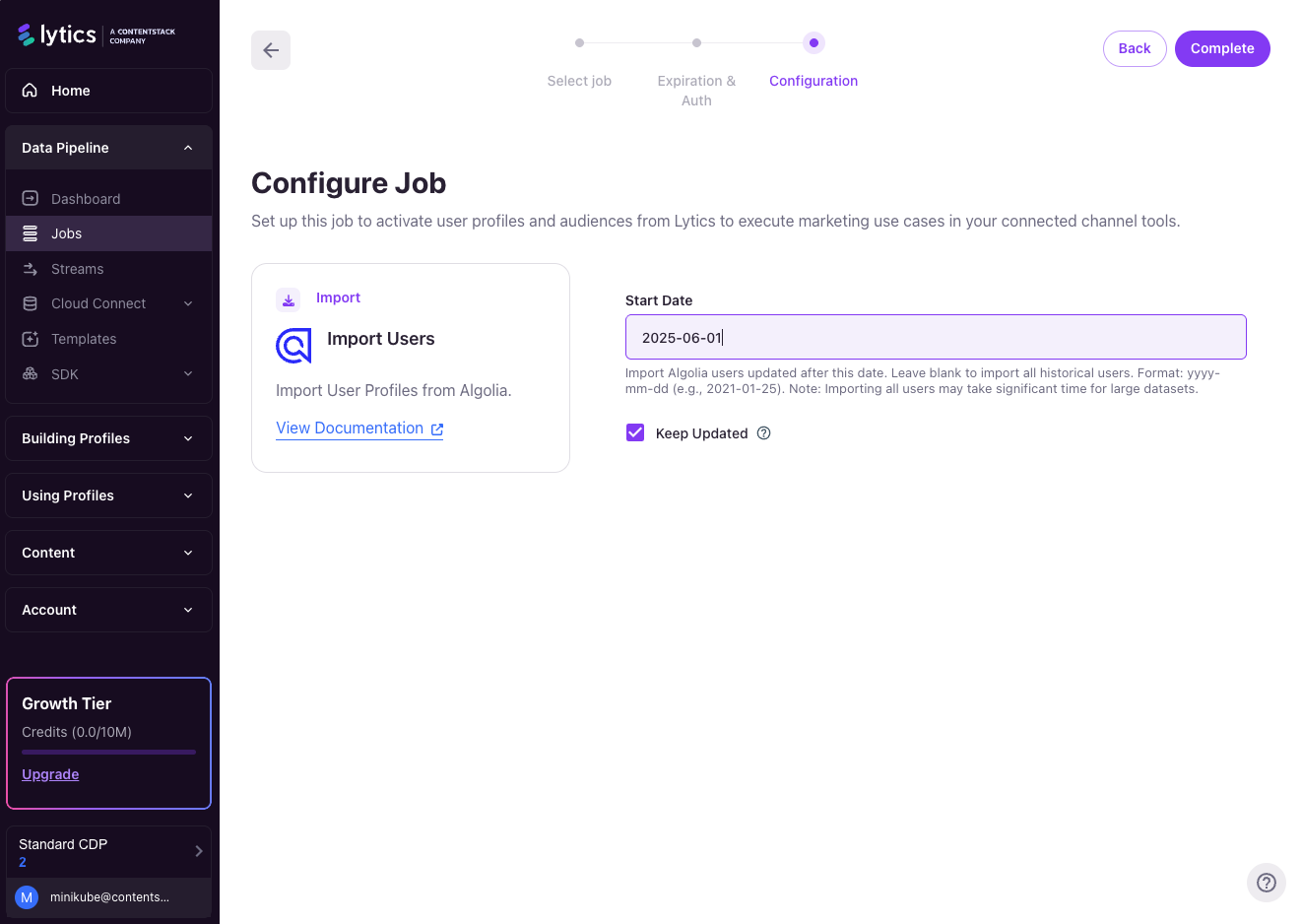
- Click Complete to create the job. The job will initially enter a sleeping state while Lytics creates the required fields and mappings in the background.
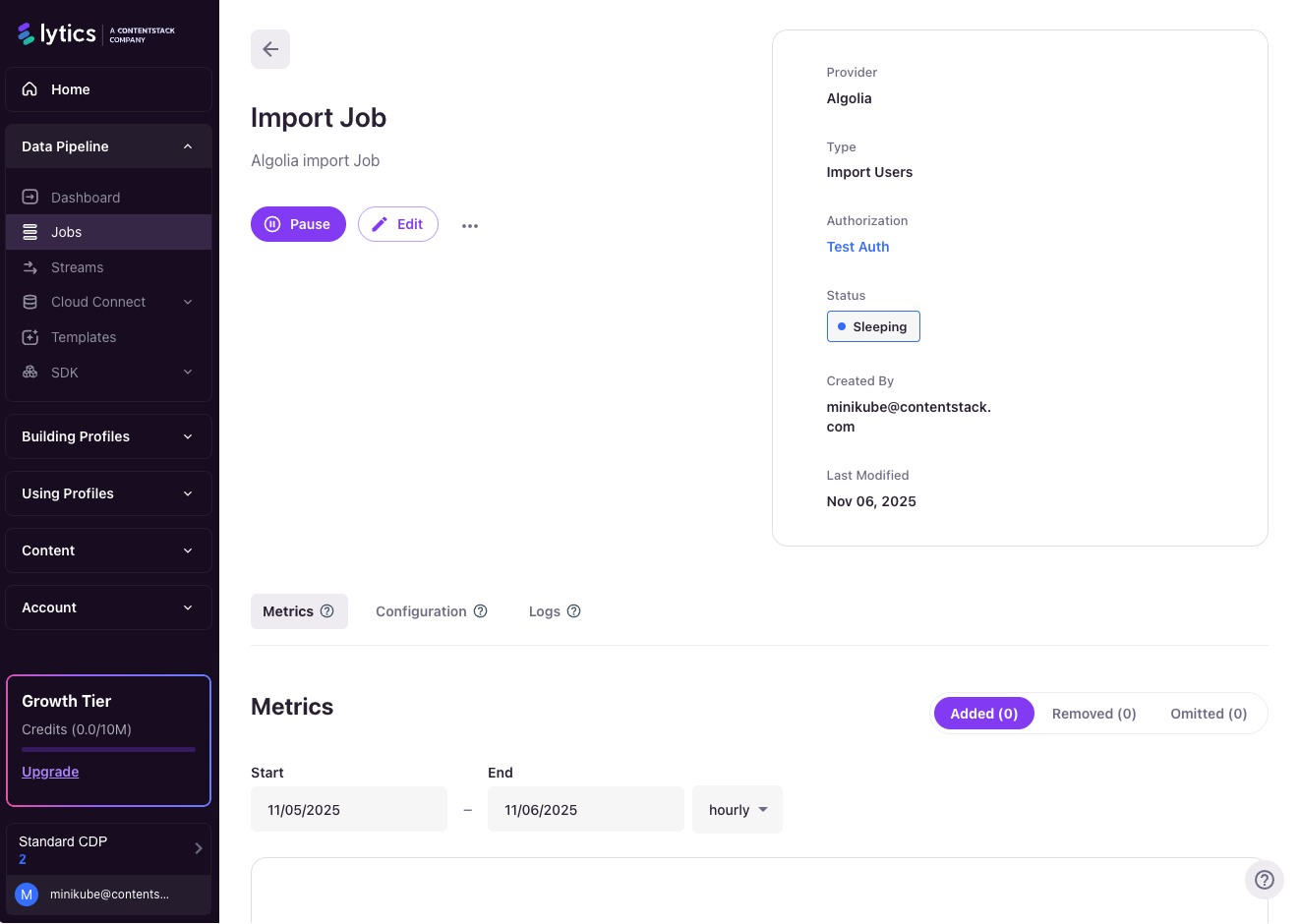
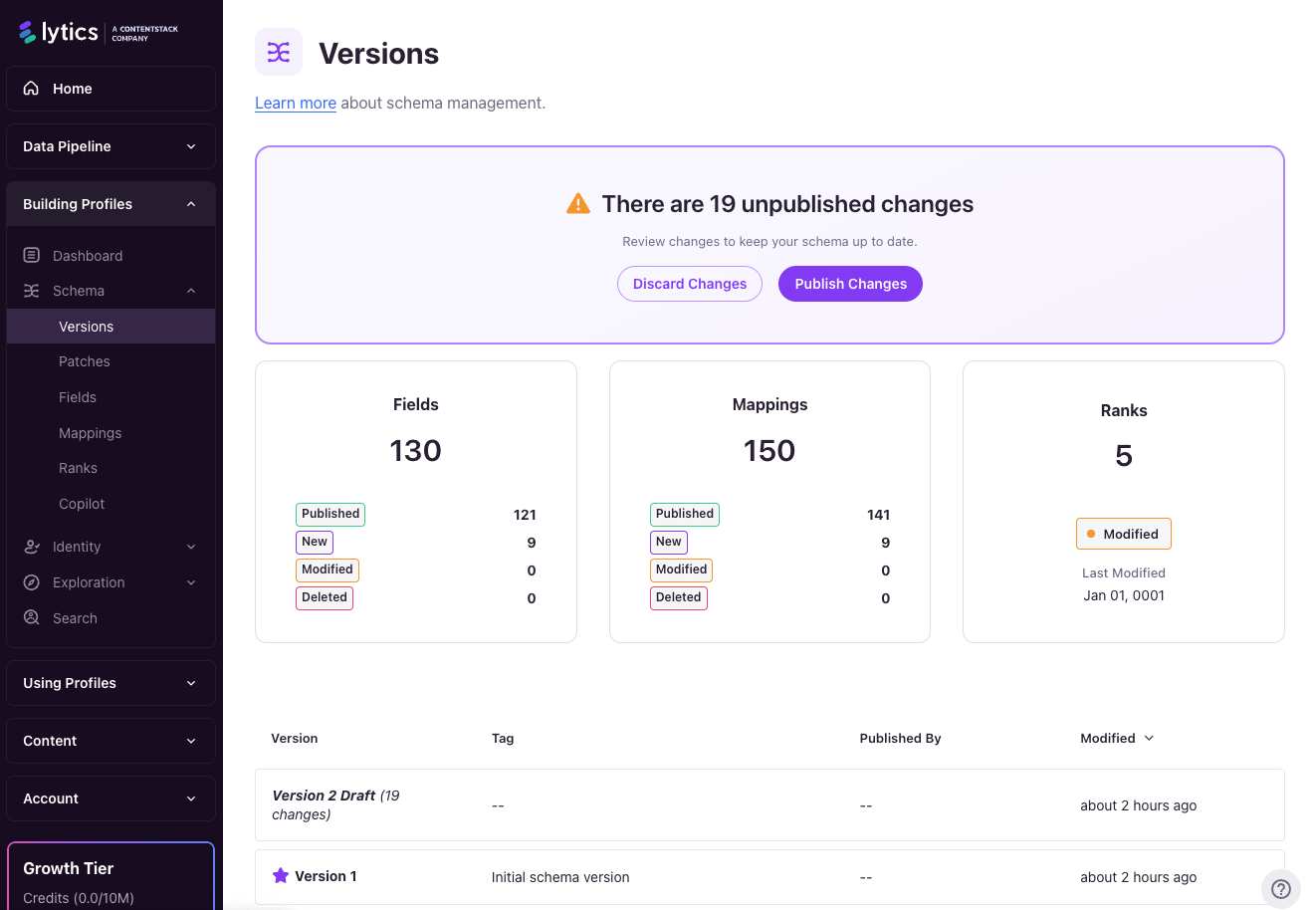
After the job is created, navigate to the Versions page to preview the fields and mappings generated by this job. You must create and publish a new version before the job can run. Once published, return to the job status page and click Pause then Resume to start the import.
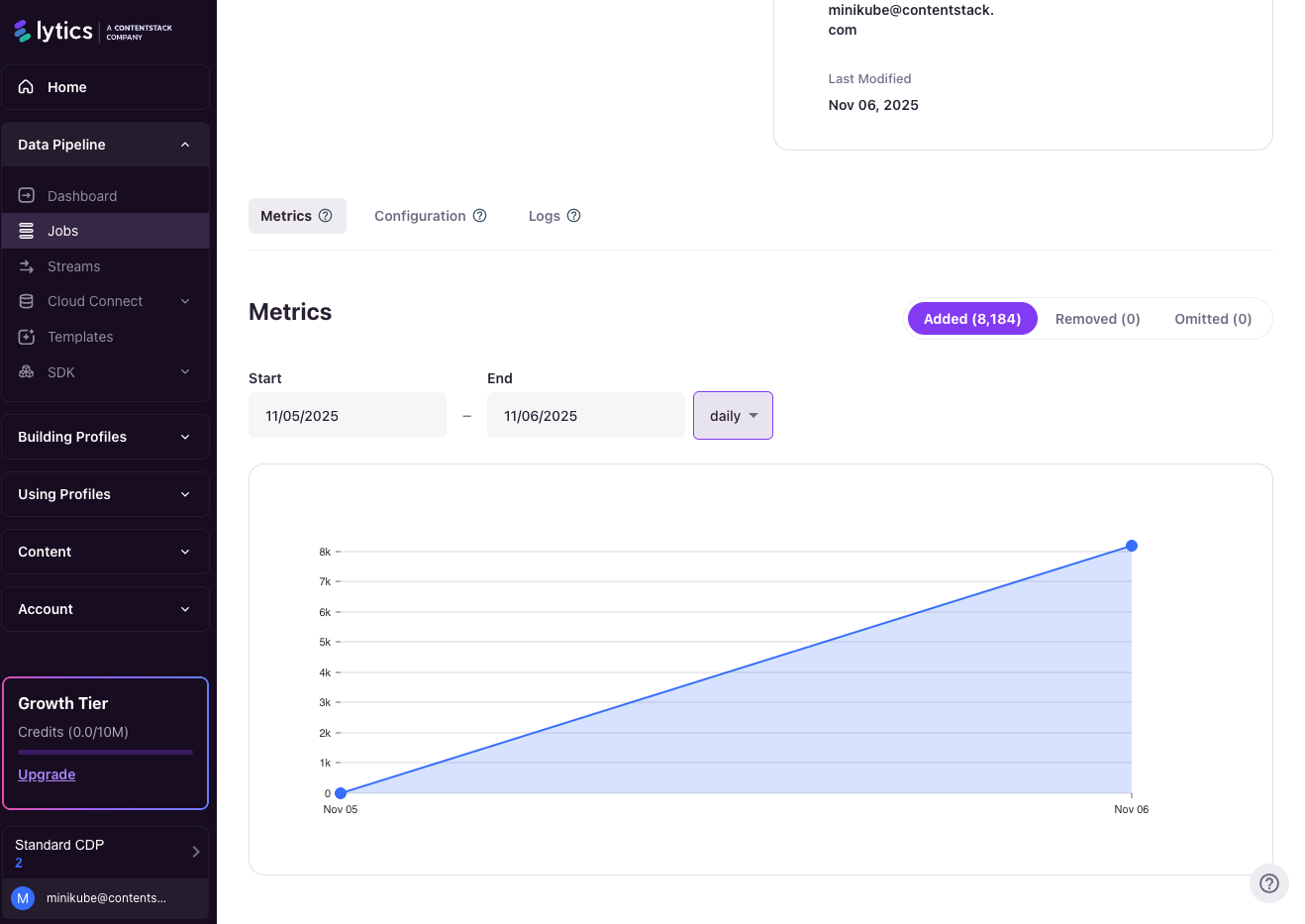
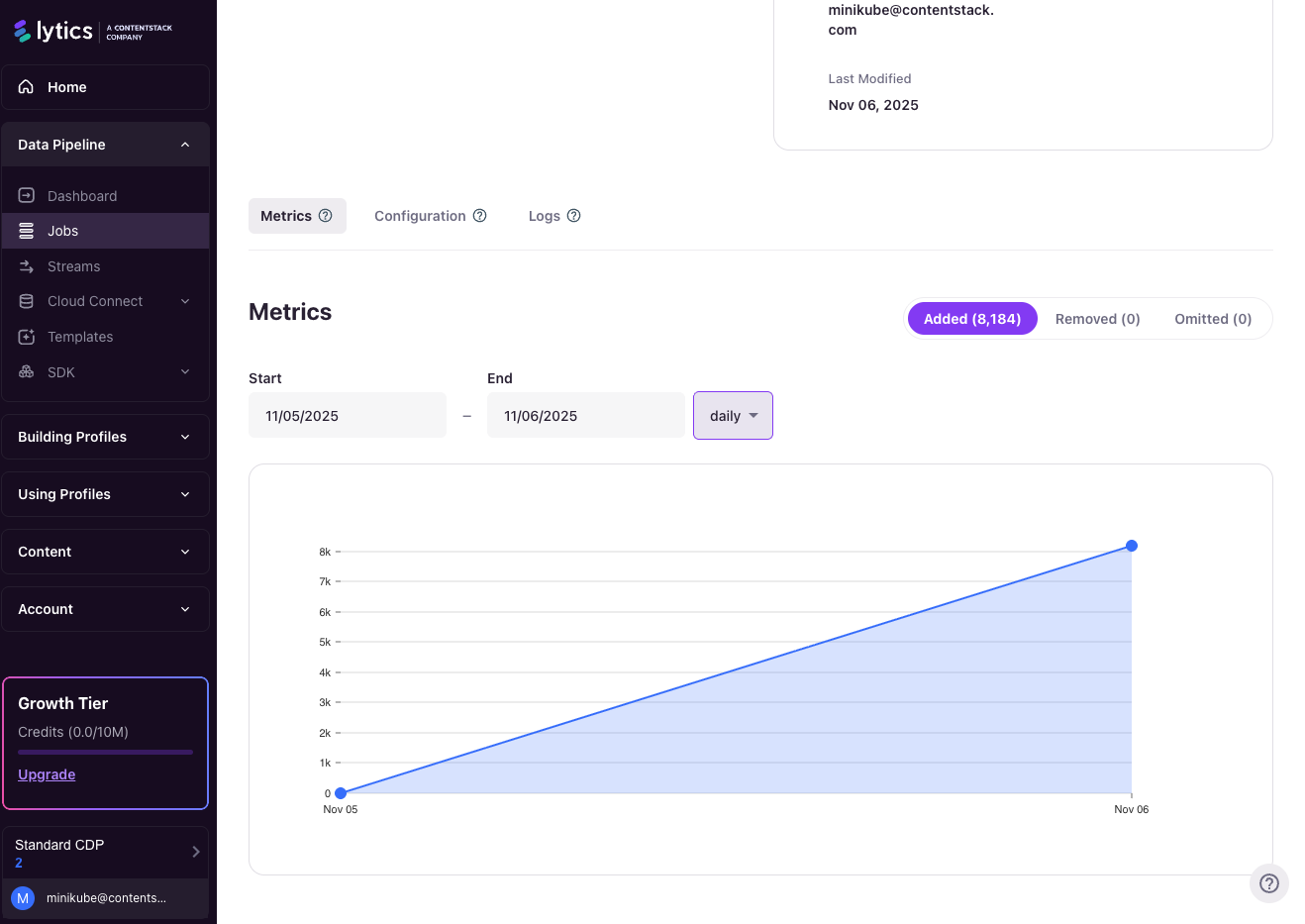
- To verify the job is running correctly, scroll to the Metrics section on the job status page. This shows the number of users imported and any error logs.
Use Cases
Audience Building and Segmentation
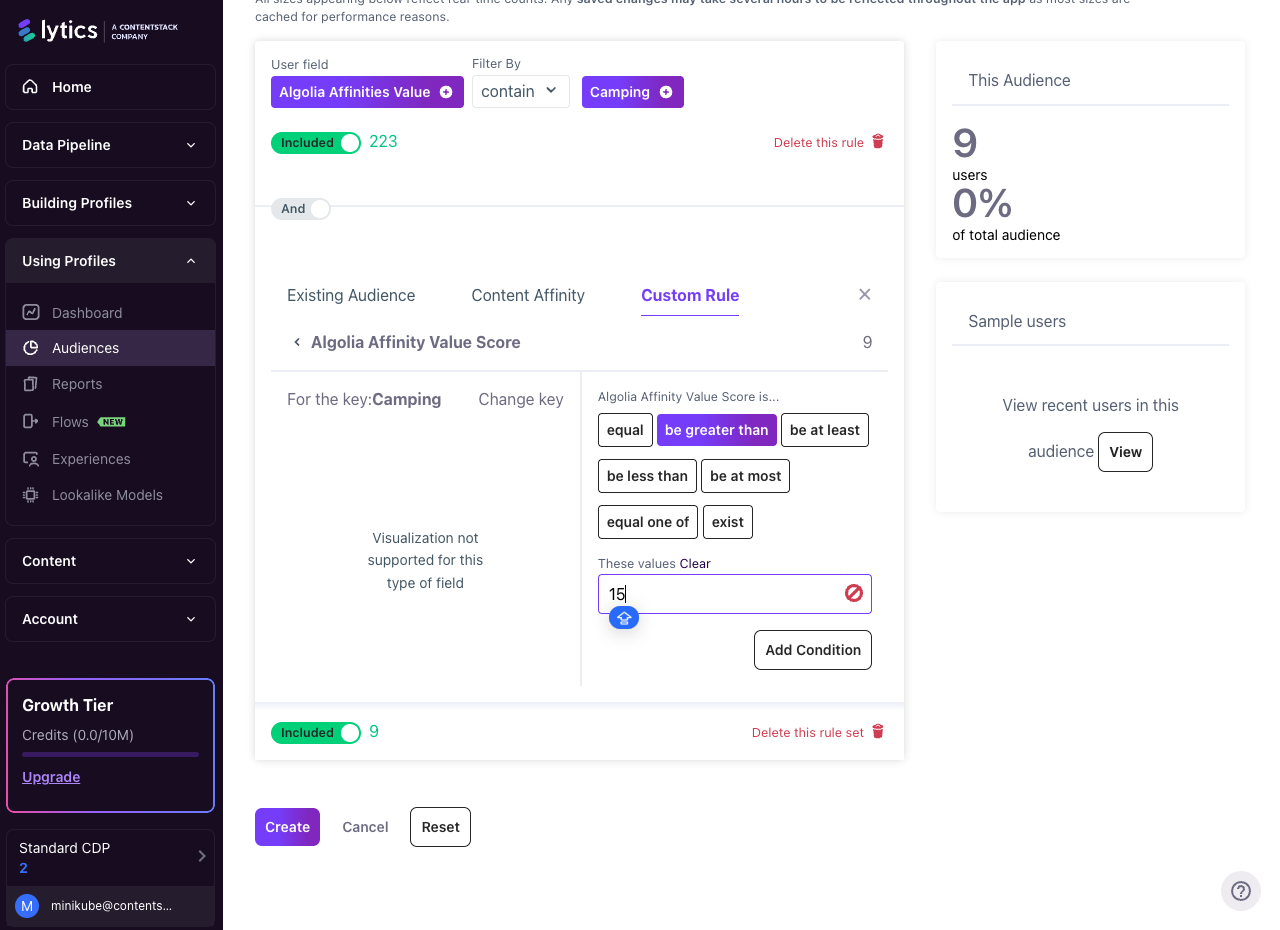
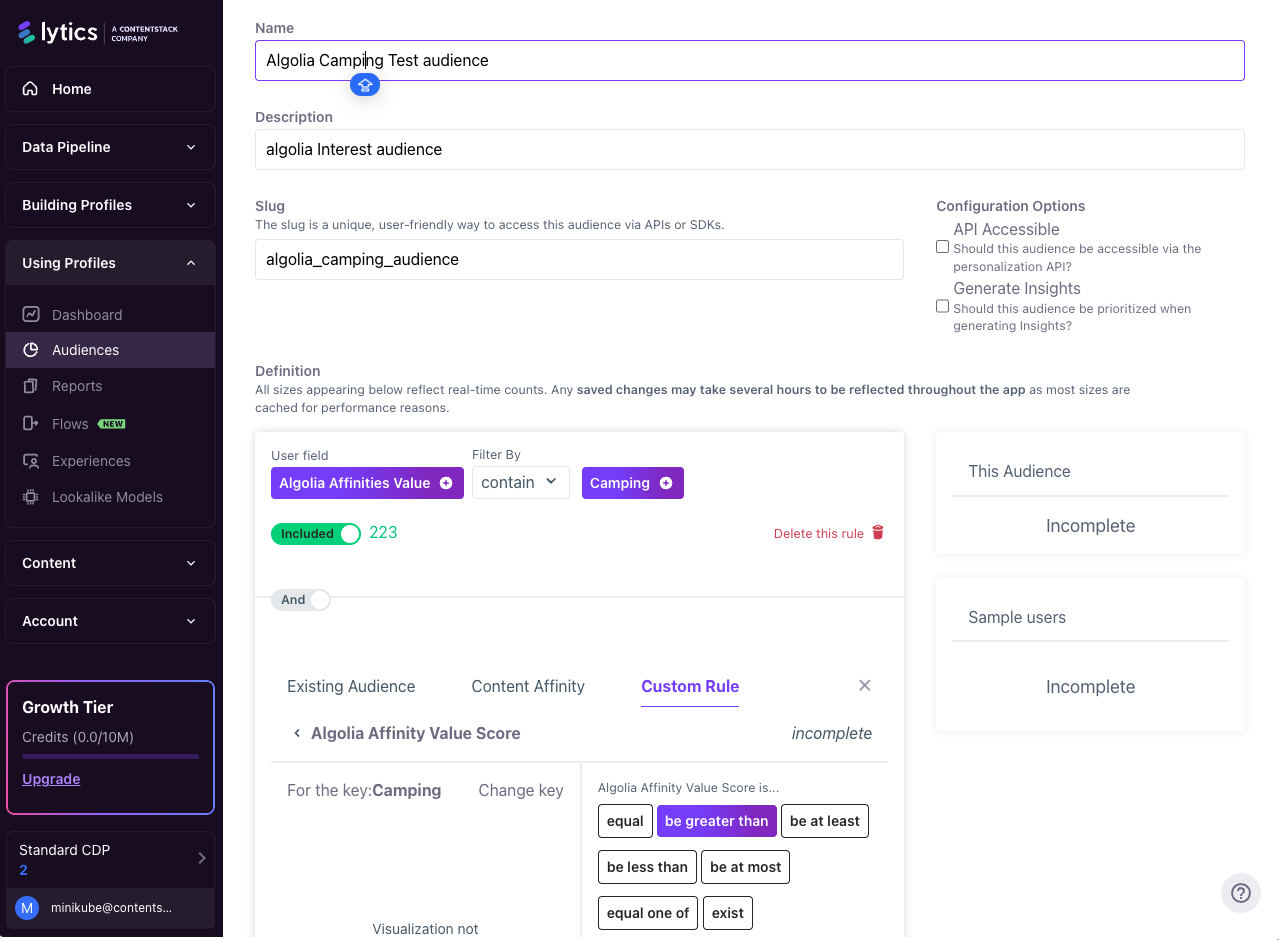
Use the imported Algolia fields to build Lytics audiences based on user affinities and segment memberships. For example, create an audience of users who have a search affinity toward a specific product category.
Export Audiences to Algolia
Send Lytics audience memberships to Algolia to personalize search results and product recommendations. As users enter or exit selected Lytics audiences, their Algolia user profile is updated with the corresponding segment associations in real time.
Integration Details
- Implementation Type: Server-side Integration.
- Implementation Technique: API Integration, Audience Trigger Integration.
- Frequency: Real-time Integration.
- Resulting data: Lytics audience segment memberships are written to Algolia user profiles via the Algolia Personalization API (Beta).
Once the export is started, the job:
- Detects a user entering or exiting a configured Lytics segment.
- Maps the Lytics user ID to the configured Algolia user ID field.
- Retrieves the existing Algolia user profile for that user.
- Merges segment memberships: adds new Lytics audience slugs on entry, removes them on exit (if configured), and preserves any Algolia segments not managed by Lytics.
- Sends the updated segment list to the Algolia Personalization API.
Fields
| Lytics Field | Algolia Field | Description |
|---|---|---|
| User ID Field | userID | The Lytics profile field used to match the Algolia user |
| Segment Slug | segments[].id | Lytics audience slug written as an Algolia segment ID |
| Segment Membership | segments[] array | Full list of Lytics-managed segments on the Algolia profile |
Configuration
Follow these steps to set up an Export Audiences job for Algolia.
- Select Algolia from the list of providers.
- Select the Export Audiences job type from the list.
- Select the Authorization you would like to use or create a new one.
- Enter a Label to identify this job in Lytics.
- (Optional) Enter a Description for further context on your job.
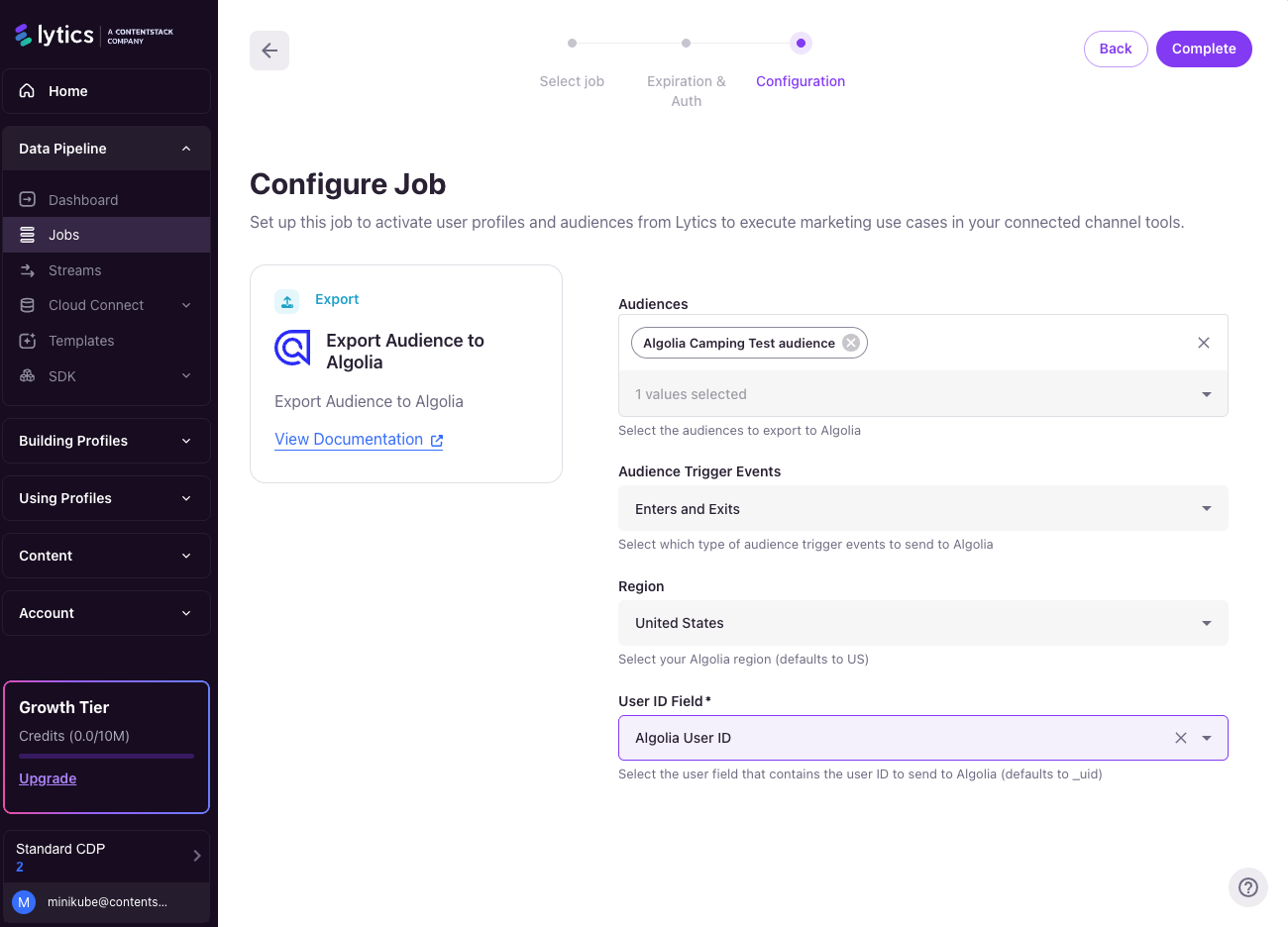
- From the Audiences list, select the Lytics audiences to export. As users enter or exit the selected audiences, their Algolia profile will be updated.
Select audiences whose users have an
algolia_user_idvalue. Users without a valid Algolia user ID in the mapped field will be skipped and will not update Algolia.
- From Trigger Events, select when to send updates: Entry only, Exit only, or Both.
- From the Region dropdown, select US or EU to match your Algolia application's region.
- From the User ID Mapping field, confirm the Lytics profile field that contains the Algolia user ID. This field is pre-populated and should not need to change.
- Click Start Export.
Segment Merging Behavior
When a user's segment membership is exported to Algolia:
- Existing Algolia segments linked to the user are read first.
- Lytics-managed segments are added or removed based on the trigger configuration.
- Segments on the Algolia profile that were not created by Lytics remain unchanged.
Troubleshooting
Common Issues
| Issue | Possible Cause | Resolution |
|---|---|---|
| Export not syncing | Invalid or missing Algolia user ID mapping in Lytics | Verify the User ID Mapping field and ensure users have valid algolia_user_id values |
| Export missing segments | User not in the selected segment, or exit trigger not configured | Confirm segment configuration and trigger event settings |
| Import incomplete | Start date filter is excluding users, or continuous sync is not enabled | Adjust the start date or enable the Keep Updated checkbox |
| Authentication errors | API key lacks required permissions or the wrong region is selected | Ensure the API key has search, browse, and recommendations permissions, and that the region matches your Algolia application |
Verification Steps
- Check the job status in Lytics under the Metrics tab for import/export counts and error logs.
- Validate your Algolia credentials: Application ID and API Key.
- Review job logs for errors or warnings.
- Confirm connectivity to the Algolia API.
- Verify that data appears in Lytics profile fields and in Algolia user profiles as expected.
Updated 5 months ago