

Audience Naming Conventions
Define account-level templates that keep audience names consistent, and optionally require every new audience to use one.
Introduction
As an account's audience library grows, inconsistent names make it hard to find, group, and audit audiences. Audience Naming Conventions give admins a way to define reusable name templates — with dropdowns, free-text fields, and fixed tokens — that anyone building an audience can select and fill in. Optionally, you can require that every new audience use a convention.
This feature replaces ad-hoc naming guidelines and prefix conventions with structured, account-level rules that the platform enforces for you.
How It Works
A naming convention is a template with two kinds of tokens:
{{VariableName}}— a required dropdown. The admin defines the allowed values.{{input}}— an optional free-text field for custom text.
Literal text in the template appears as-is in the generated name.
Example template: {{Team}}_{{Channel}}_{{input}}
With Team = ["growth", "retention", "brand"] and Channel = ["email", "sms", "push"], a user building an audience would pick values from the dropdowns and optionally add custom text, producing names like growth_email_spring-promo or retention_sms_winback-q2.
Admins can define multiple conventions — one per team, one per campaign type, or any combination that fits the account's governance needs.
Configuring Conventions (Admin)
Conventions are managed from Account → Settings → Audiences. The page contains two sections: Audience Similarity Enforcement (a separate feature) and Audience Naming.
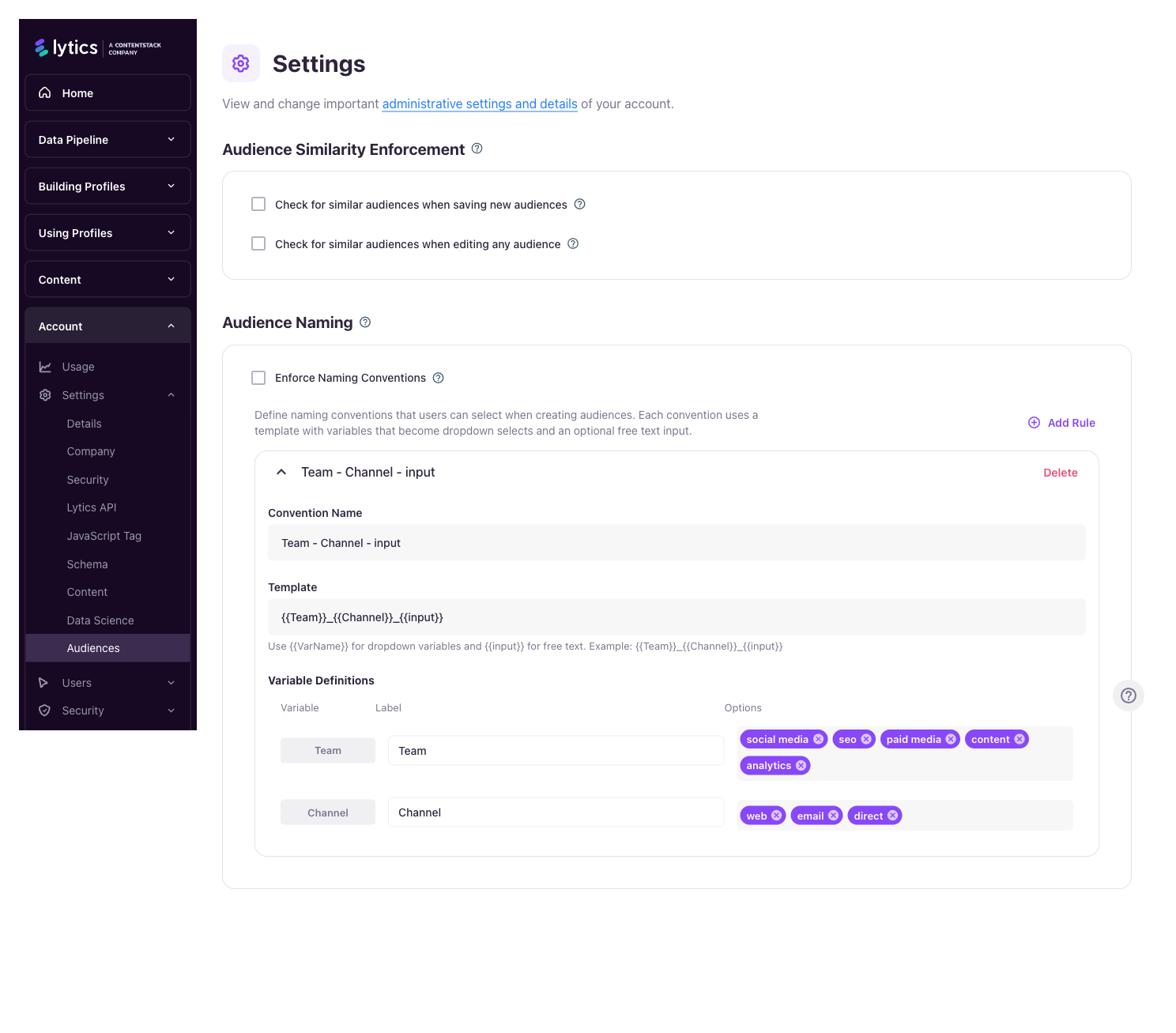
Adding a convention
- Click Add Rule.
- Give the rule a Convention Name — this is what end users see in the dropdown when building an audience.
- Enter a Template using
{{VariableName}}and optional{{input}}tokens. - For each variable in the template, configure:
- Label — display name shown on the form field.
- Options — the list of allowed values, added as chips (click each chip's × to remove).
- Save the rule.
You can add as many rules as you need, and expand or collapse each rule's card to keep the list tidy.
Enforcing conventions
A separate account setting, Enforce Audience Naming Conventions, controls whether users must pick a convention when creating or editing an audience:
| Enforcement | User experience |
|---|---|
| Off | Users see a "Naming Convention" dropdown that includes None. They can either pick a convention or type a name freely. |
| On | The None option is hidden — users must pick one of the defined conventions. |
If enforcement is turned on but no rules exist, users can still save audiences with free-form names. The builder shows a banner reminding admins that conventions won't be enforced until at least one rule is defined.
Using a Convention (Audience Builder)
When a user creates or edits an audience, the builder shows a Naming Convention selector above the name field.
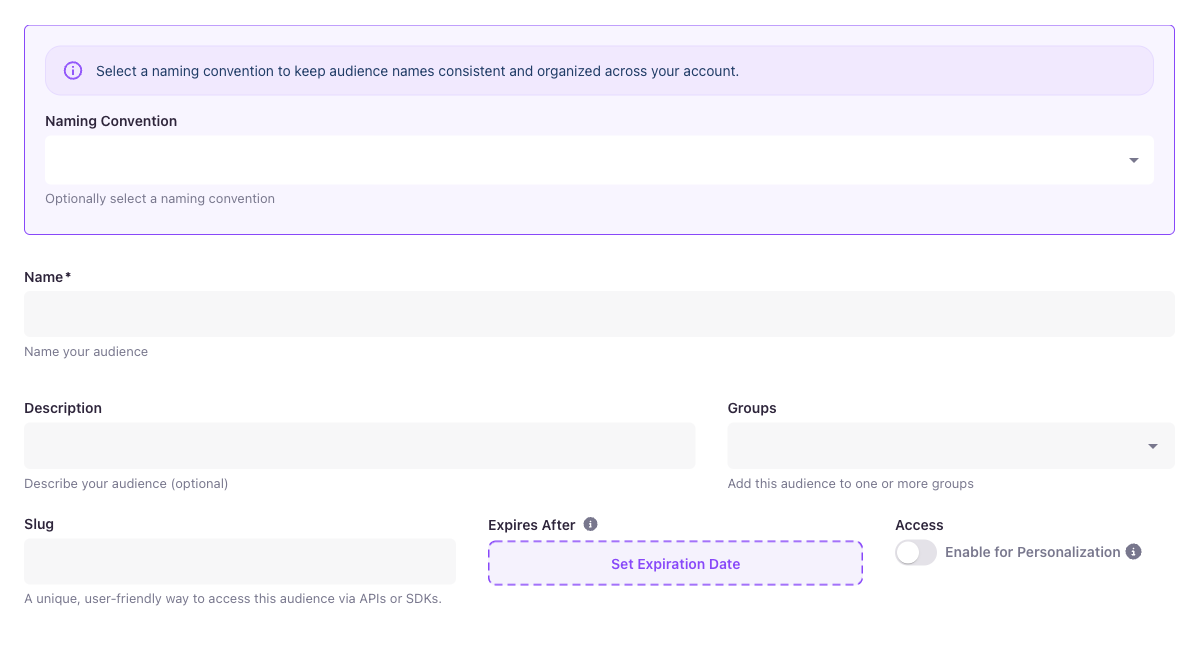
- Pick a convention from the dropdown. The form below expands with one field per variable plus an optional free-text field (if the template includes
{{input}}). - Fill in each variable by picking from its dropdown. Enter any custom text in the free-text field.
- The audience Name field updates automatically as you fill in values, and is locked against manual edits — a lock icon on the right of the field and the helper text "Name is generated from the selected convention" explain why.
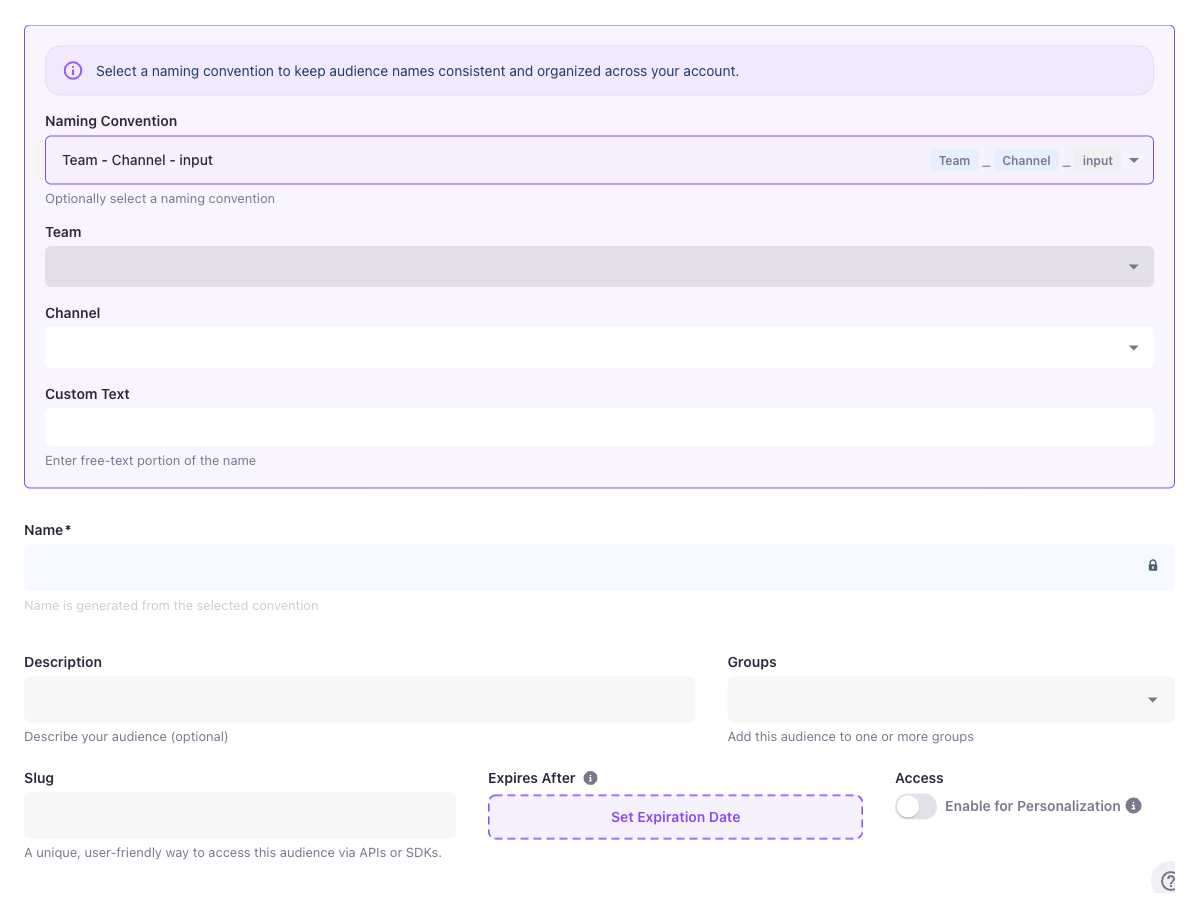
To choose a different convention, re-open the selector and pick a different rule — the form fields update to match.
Editing an existing audience
When a user opens an existing audience whose name matches one of the defined conventions, Lytics auto-detects the convention and pre-fills the variable values. If the existing name doesn't match any convention:
- With enforcement off, the audience keeps its current name unless the user picks a convention.
- With enforcement on, the user is prompted to pick a convention to save changes.
Scope
- Conventions apply to user-table audiences (the standard audience builder). Content-table and other document-type segments are unaffected.
- The feature applies both when creating a new audience and when editing an existing one.
- Conventions do not retroactively rename existing audiences — names only change when a user saves an audience with a convention selected.
Tips
- Keep variable dropdowns short. Long lists slow down the name-building workflow; split a single overloaded convention into two separate rules instead.
- Use
{{input}}for the part of the name that varies per audience (e.g., the campaign name), and variables for the dimensions you want to report on or filter by later. - Enforce conventions only after you've created a rule set that covers your common audience types — otherwise builders will be blocked on workflows you haven't designed for yet.
Related
- Audiences — Creating and managing audiences
- Audience Groups — Grouping audiences into folders
Updated 5 months ago