

Spotify
Overview
Spotify is an audio streaming platform whose Ads Manager lets advertisers run audio campaigns against Spotify's listener base. Integrating Lytics with Spotify enables you to send Lytics audiences as Spotify customer-list audiences so you can target known users with audio creative.
Authorization
If you haven't already done so, you will need to set up a Spotify Ads account and accept the Spotify Ads API Terms before you begin the process described below.
If you are new to creating authorizations in Lytics, see the Authorizations documentation for more information.
The Spotify user being authenticated must have access to manage audiences in the businesses and ad accounts you intend to export to. See Spotify's Ads API guides for details on how Spotify manages business and ad-account access.
- Select Spotify from the list of providers.
- Select the Spotify Sign-In method for authorization.
- Enter your Spotify credentials in the login popup and grant the requested permissions.
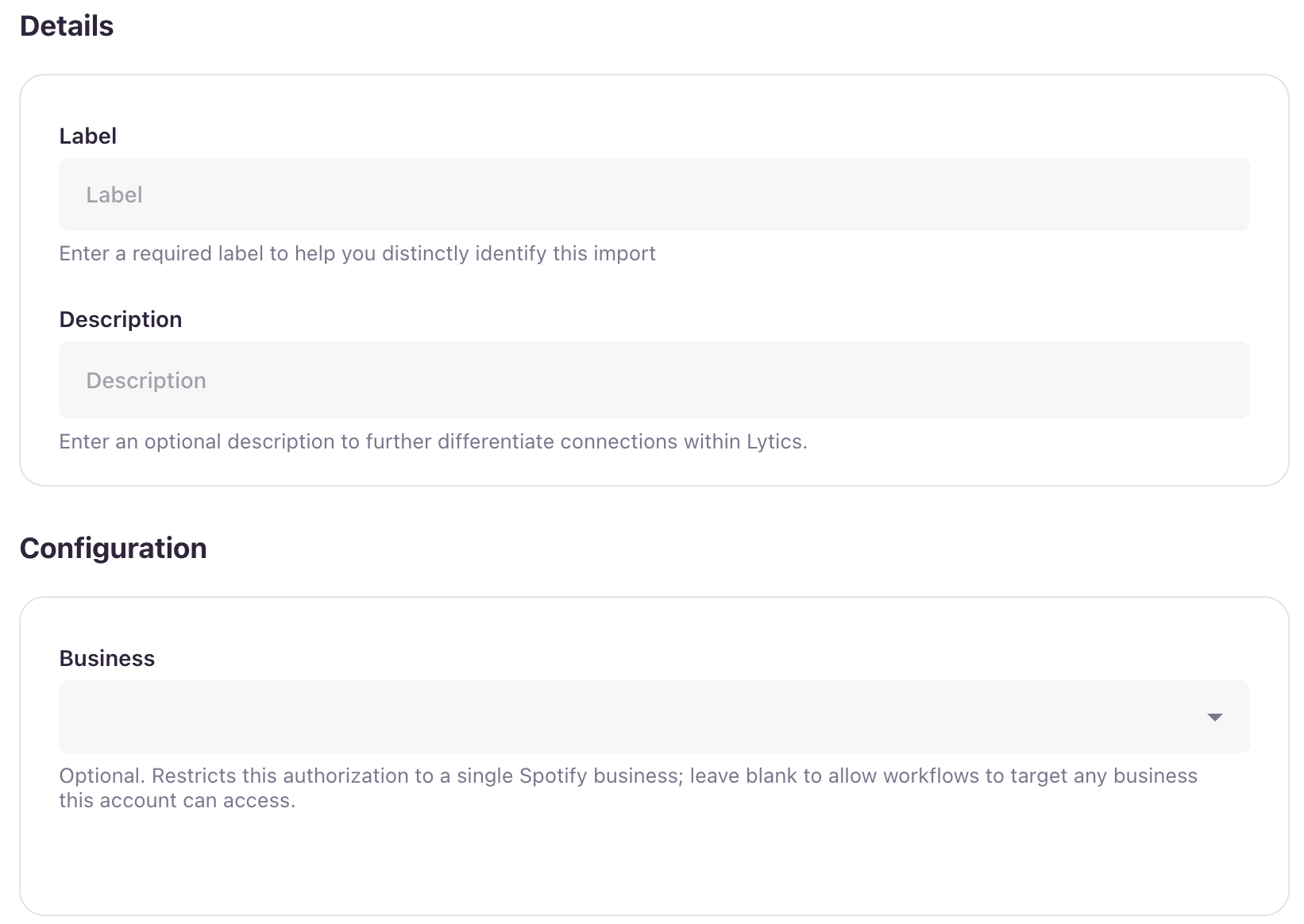
- In the Label text box, enter a name for the authorization.
- (Optional) In the Description text box, enter a description for this authorization.
- (Optional) From the Business drop-down, select a single Spotify business to restrict this authorization to. Leave blank to allow any workflow using this authorization to target any Spotify business the authenticated user can access. The list is fetched live from Spotify based on the authenticated user's access.
- Click Save Authorization.
Export Audience
Starting an export will create a Spotify customer-list audience by exporting a Lytics audience to Spotify. For each user, Lytics uploads an email address and/or mobile advertising ID (IDFA/AAID), SHA-256–hashed before upload, which Spotify matches against its listener base.
Spotify Ads API v3 treats customer-list uploads as full replacements: each scheduled run does a complete scan of the Lytics audience and replaces the contents of the Spotify audience with the result. This integration is interval-based, not real-time — choose the cadence that fits your campaign refresh needs.
Integration Details
- Implementation Type: Server-side Integration
- Implementation Technique: REST API Integration
- Frequency: Batch Integration on a configurable Daily, Weekly, or Monthly schedule.
- Resulting data: A Spotify customer-list audience populated with users from the selected Lytics audience.
This integration uses Spotify's Ads API v3 to create and update the customer-list audience. Once the job is started, on each scheduled run it will:
- Create a new Spotify customer-list audience the first time the job runs (a
CUSTOMaudience with subtypeCUSTOMER_LIST). On subsequent runs it reuses the same audience. The audience name defaults to the job name; you can override it in the configuration. - Scan the selected Lytics audience and write each user's configured identifier(s) to a CSV file, SHA-256–hashing values that aren't already hashed.
- Request a signed upload URL from Spotify and PUT the file to it, which replaces the contents of the customer-list audience.
- Sleep until the next scheduled run, then repeat from step 2.
Minimum audience size: Spotify requires customer-list uploads to contain at least 1,000 rows. If a scheduled run produces fewer than 1,000 hashed identifiers, the Spotify audience will not be updated until a subsequent run meets the threshold.
Maximum file size: Spotify caps customer-list uploads at 1 GiB. If a single run would exceed that, Lytics ships the partial file (so the audience is not blocked) and the cap is reflected in the job's run stats. For very large audiences, prefer narrower identifier mappings (e.g. one ID type rather than two).
Fields
The export job sends one row per user with the following columns, depending on which fields you map in the configuration. At least one of the two identifier fields must be mapped.
| Lytics user field | CSV column | Spotify identifier type | Hashing |
|---|---|---|---|
| Email field | EMAIL_ID_SHA256 | EMAIL_ID_SHA256 | Lytics SHA-256–hashes raw values. Values already in valid SHA-256 form are passed through. |
| Device ID field (IDFA/AAID) | DEVICE_ID_SHA256 | DEVICE_ID_SHA256 | Lytics SHA-256–hashes raw values. Values already in valid SHA-256 form are passed through. |
See Spotify's customer-list formatting guidelines for the source-of-truth on accepted identifier formats.
Configuration
Follow these steps to set up and configure an export job for Spotify in the Lytics platform. If you are new to creating jobs in Lytics, see the Destinations documentation for more information.
- Select Spotify from the list of providers.
- Select the Export Audience job type from the list.
- Select the Authorization you would like to use or create a new one.
- Enter a Label to identify the job you are creating in Lytics.
- (Optional) Enter a Description for further context on your job.
- From the Audiences input, select the Lytics audience to export.
- From the Spotify Business drop-down, select the Spotify business this export targets. If the authorization is scoped to a single business, only that business appears here.
- From the Spotify Ad Account drop-down, select the ad account (under the chosen Spotify business) that will own the customer-list audience. This list is populated after a business is selected.
- (Optional) From the Email Field input, select the Lytics user field containing the email address.
- (Optional) From the Device ID Field input, select the Lytics user field containing the mobile advertising ID (IDFA/AAID).
- (Optional) In the Audience Name text box, enter the name shown for this audience in Spotify Ads Manager (max 80 characters). Defaults to the job's label.
- (Optional) Toggle Keep Updated off if you want a one-time export. When on (the default), the job re-runs on the cadence configured below.
- From the Run Frequency input, select Daily, Weekly, or Monthly.
- (Optional) From the Day of Week input, select the day to run on for weekly cadence.
- (Optional) From the Time of Day input, select the time to start the run.
- (Optional) From the Time Zone input, select the time zone that Time of Day is interpreted in.
- Click Complete to start the job.
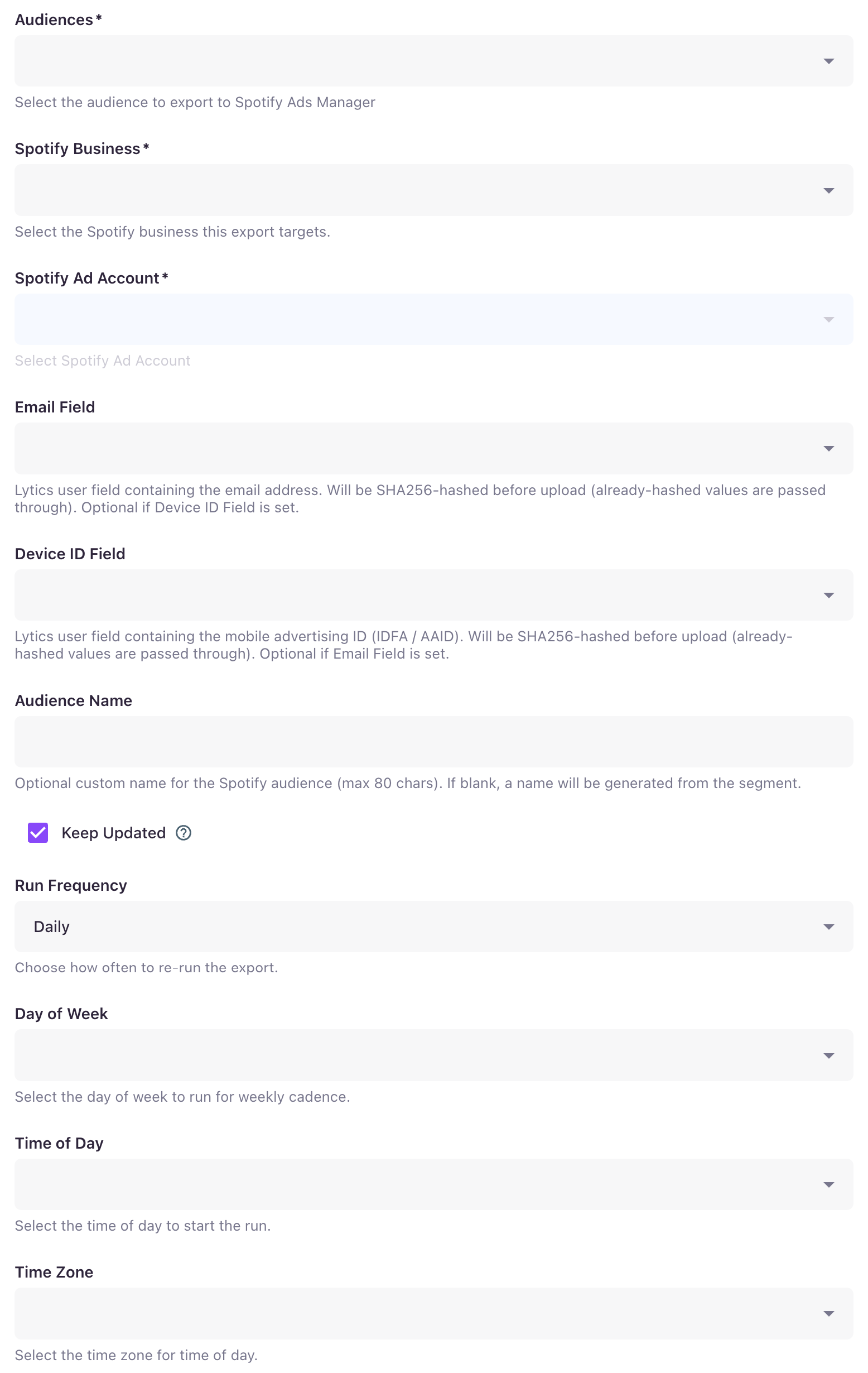
At least one of Email Field or Device ID Field must be set. If both are mapped, Lytics writes both columns for each user that has them; rows missing both identifiers are dropped.
Updated 5 months ago