
Attentive
Overview
Attentive is a conversational marketing platform that helps brands engage customers through personalized SMS and email messaging.
Integrating Lytics with Attentive allows you to export Lytics audiences to Attentive in real time. Members of an exported audience are flagged in Attentive with a custom attribute, so you can build Attentive segments and trigger SMS and email journeys off of Lytics audience membership and the cross-channel behavior, data science scores, and content affinities that power it.
Authorization
If you haven't already done so, you will need to set up an Attentive account before you begin the process described below. If you are new to creating authorizations in Lytics, see the Authorizations documentation for more information.
To connect Lytics and Attentive you will need an Attentive API key. Generate a private app API key from the Attentive platform with the attributes:write and subscriptions:write scopes. See Attentive's authentication documentation for instructions on creating an API key. Lytics validates the key when the authorization is saved.
Lytics only updates user attributes in Attentive — it never modifies subscriptions. The
subscriptions:writescope is required only because Attentive's Bulk User Attributes endpoint, which lets Lytics send many users in a single call, requires it.
Follow the steps below to add this authorization in Lytics:
- Select Attentive from the list of providers.
- Select the Attentive API Key method for authorization.
- In the Label text box, enter a name for the authorization.
- (Optional) In the Description text box, enter a description for this authorization.
- In the Api Key password box, enter your Attentive API key.
- Click Save Authorization.
Export Audiences
Export your Lytics audiences to Attentive so you can target and message users based on their audience membership in Lytics.
Integration Details
- Implementation Type: Server-side Integration.
- Implementation Technique: REST API Integration with Audience Trigger Integration.
- Frequency: Real-time Integration with an optional one-time Backfill of the audience after job setup.
- Resulting Data: User Profiles that are members of the selected audience(s) are exported to Attentive. Each audience is represented in Attentive as a boolean custom attribute named after the Lytics audience slug, set to
truewhile the user is a member andfalseonce they exit.
This integration uses Attentive's Bulk User Attributes API to send Lytics users to Attentive. Once the export is started, the job will:
- Run a one-time backfill of the current members of the selected audience(s), if Existing Users is enabled.
- Receive real-time updates when a user enters or exits the selected audience(s).
- For each user entering an audience, send the user's identifiers and mapped attributes to Attentive and set the audience attribute (
<audience slug> = true). - For each user exiting an audience, set the audience attribute to
false.
Users are sent to Attentive in batches. A batch is flushed when it reaches 256 users (the Attentive bulk endpoint's per-request maximum) or every 30 seconds, whichever comes first. If a user already has a pending change in the current batch and then triggers another (for example, exits an audience they just entered), the batch is flushed early so that enter and exit transitions are applied to Attentive in order.
Attentive processes each bulk request asynchronously and returns a batch job ID, so users may take a few minutes to appear in Attentive after they are sent. Lytics tracks the status of each batch job until it completes. If Attentive rate limits the integration, the job automatically backs off and retries.
Fields
Every exported user must include at least one Attentive identifier so Attentive can match the user to a subscriber profile. You map Lytics user fields to Attentive identifiers and attributes through four mappings in the job configuration:
- Identifier Mappings — required. Map Lytics user fields to Attentive's standard identifiers:
phone,email,clientUserId,shopifyId, andklaviyoId. At least one identifier mapping is required. Phone numbers must be in E.164 format (for example,+15551234567). - Extra Identifiers — optional. Select Lytics fields to send as Attentive custom identifiers. The Lytics field name is used as the identifier key in Attentive.
- Attribute Mappings — optional. Map Lytics user fields to Attentive's well-known, typed attributes such as
firstName,lastName,city, anddateOfBirth. Date attributes such asdateOfBirthmust be inYYYY-MM-DDformat. - Custom Attributes — optional. In addition to the well-known attributes above, select Lytics fields to send as Attentive custom attributes. The Lytics field name is used as the custom attribute name in Attentive. Array-valued fields are sent as comma-separated strings. These are sent alongside the audience-membership attributes, which Lytics also writes as custom attributes (one per audience slug, as described above).
Configuration
Follow these steps to set up and configure an audience export to Attentive from Lytics. If you are new to creating jobs in Lytics, see the Destinations documentation for more information.
- Select Attentive from the list of providers.
- Select the Export Audience job type from the list.
- Select the Authorization you would like to use or create a new one.
- Enter a Label to identify this job you are creating in Lytics.
- (Optional) Enter a Description for further context on your job.
- From the Audiences input, select the Lytics audience(s) to sync to Attentive.
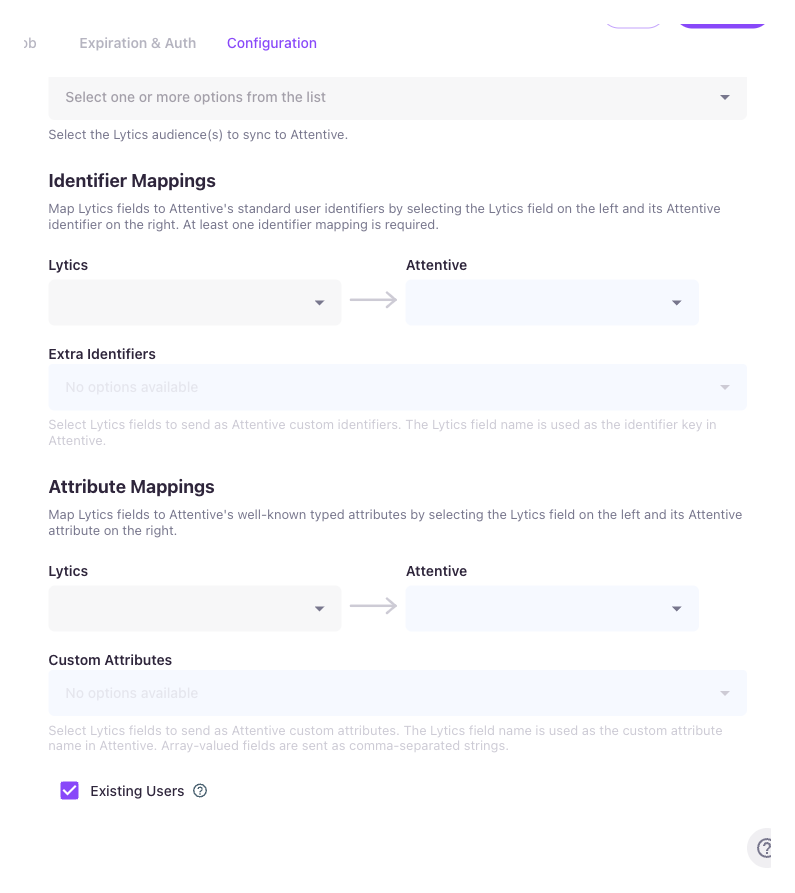
- From the Identifier Mappings input, map Lytics user fields to Attentive's standard identifiers by selecting the Lytics field on the left and its Attentive identifier on the right. At least one identifier mapping is required.
- (Optional) From the Extra Identifiers input, select Lytics fields to send as Attentive custom identifiers.
- (Optional) From the Attribute Mappings input, map Lytics user fields to Attentive's well-known attributes by selecting the Lytics field on the left and its Attentive attribute on the right.
- (Optional) From the Custom Attributes input, select Lytics fields to send as Attentive custom attributes.
- (Optional) Select the Existing Users checkbox to enable a one-time backfill of the current members of the selected audience(s) to Attentive immediately. This is enabled by default.
- Click Start Export.
Users will begin appearing in Attentive within a few minutes of starting the export. You can confirm the export in Attentive by checking the audience attribute on a test user's subscriber profile.
Updated 5 months ago