

Job Blueprints
Save a job's configuration as a reusable blueprint and start new jobs from it.
What is a Job Blueprint?
A Job Blueprint is a saved snapshot of a job's configuration (its settings, authorization, quiet window, and monitoring) that you can reuse to create new jobs for the same integration. Instead of filling out the job wizard from scratch each time, you start from a blueprint and the fields come pre-filled, ready to review and adjust.
Blueprints are scoped to your account and tied to a specific integration (the provider and job type they were saved from). A blueprint is a starting point for new jobs, not a live link to a running job. Editing a blueprint does not change jobs already created from it.
Saving a job as a blueprint
Open any configured job and choose Save as job blueprint from the job's actions (⋯) menu.
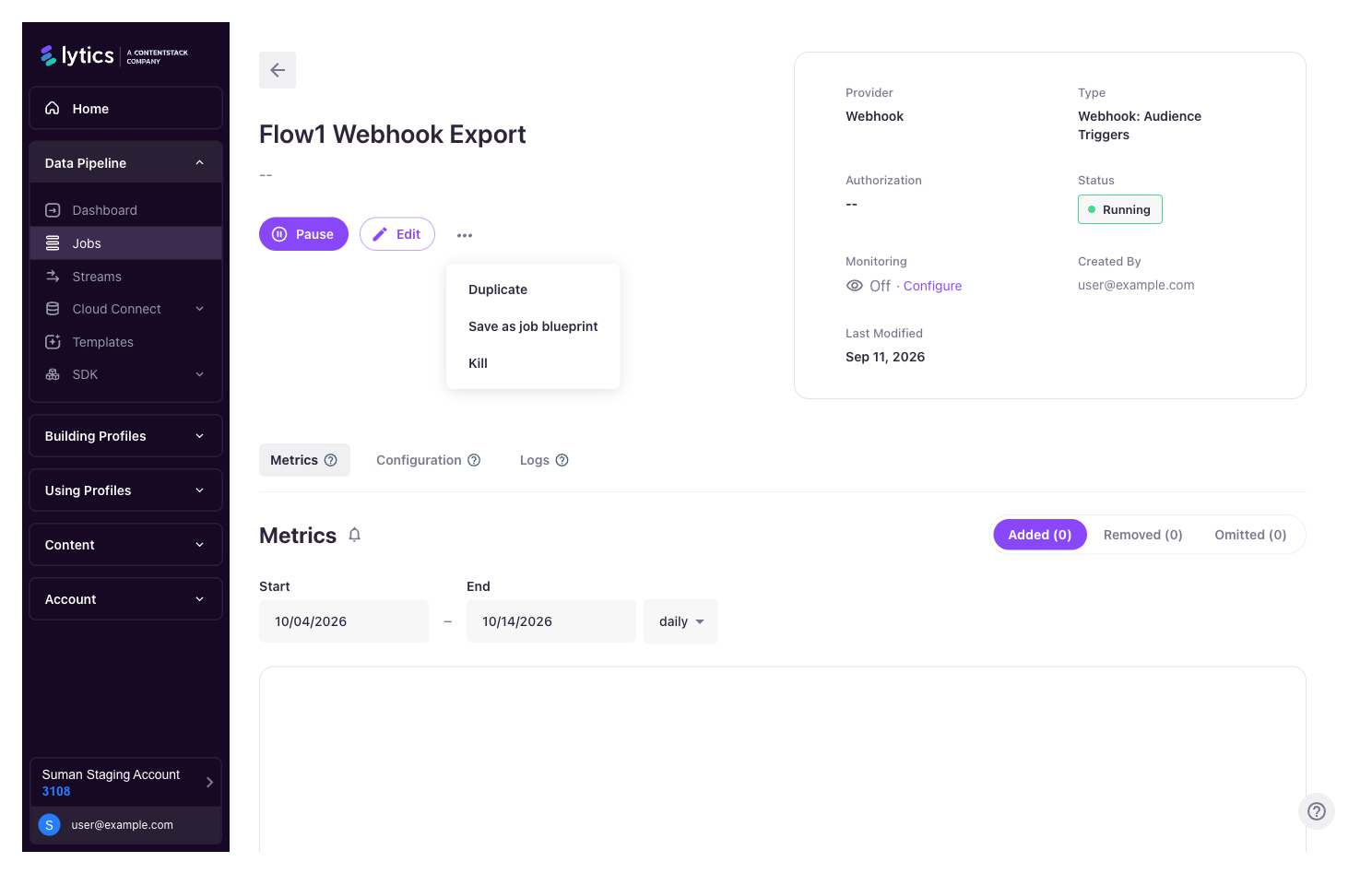
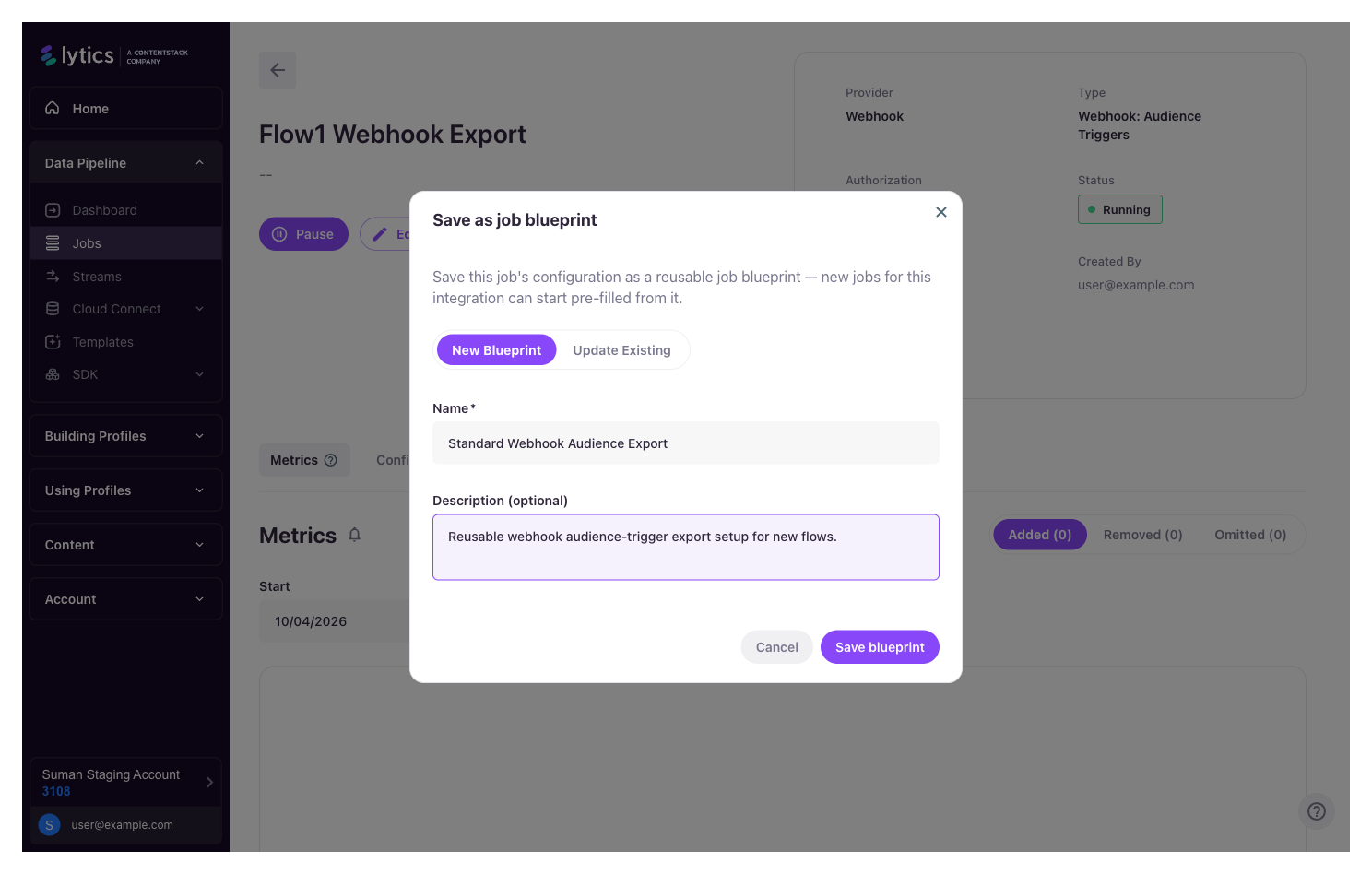
In the dialog you can either:
- New Blueprint — give it a name (and an optional description) to save the current job's configuration as a new blueprint.
- Update Existing — pick an existing blueprint to replace its stored configuration with the current job's. (Renaming a blueprint or changing its description is done from Edit, below.)
Managing blueprints
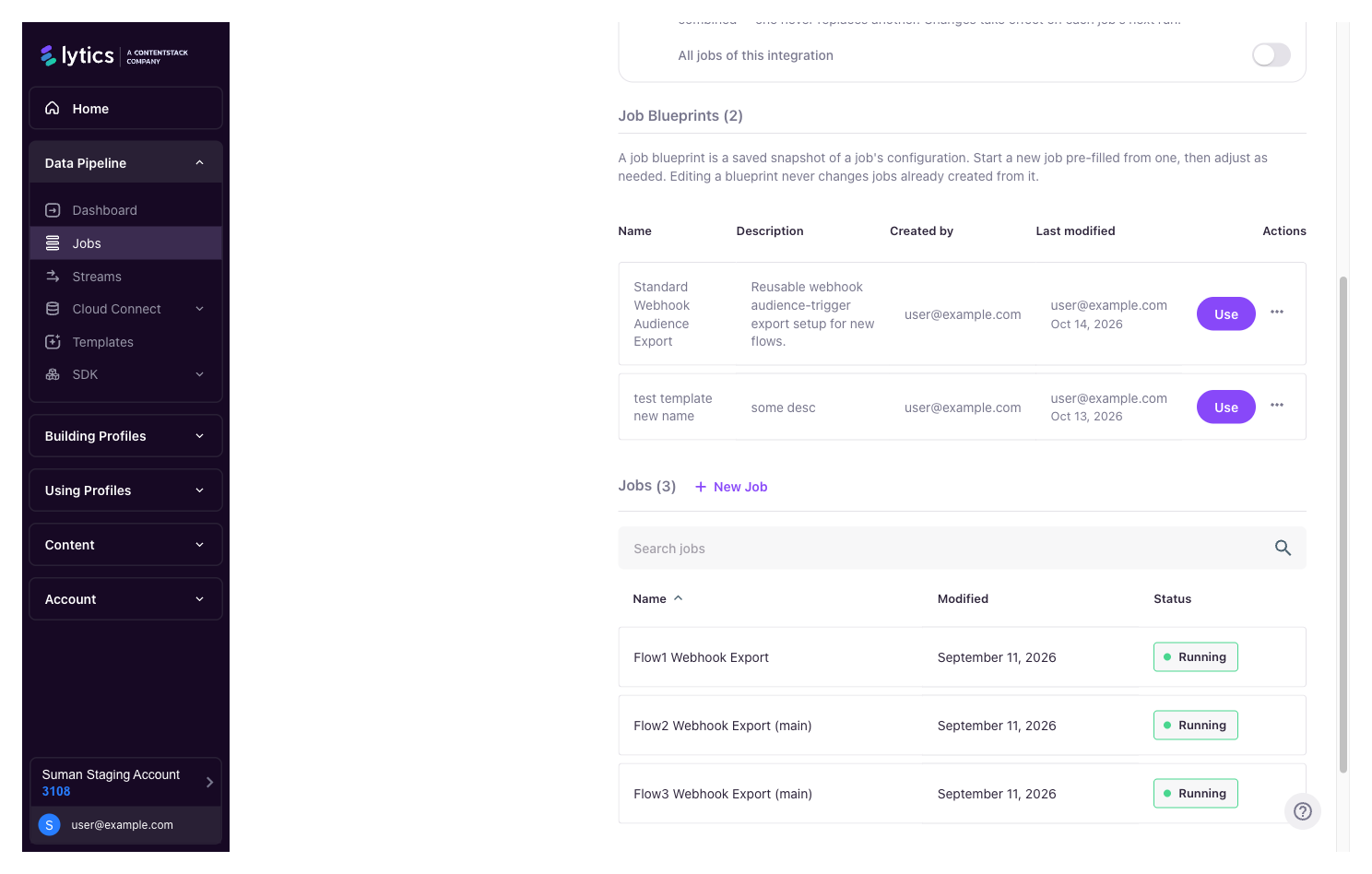
Each integration's blueprints live in the Job Blueprints section of its Manage Integration page, above the Jobs list. The section lists every blueprint saved for that integration, with its Created by and Last modified details. Each row has a Use button, with Edit and Delete in its ⋯ menu:
- Use — start a new job pre-filled from the blueprint (see below).
- Edit — rename the blueprint or update its description.
- Delete — remove the blueprint. Jobs already created from it are unaffected.
Starting a new job from a blueprint
Click Use on a blueprint to enter the job-creation wizard with its configuration applied:
- The wizard opens at the Expiration & Auth step, where a Start from a job blueprint card shows the selected blueprint. You can switch to a different blueprint for the same integration from here.
- The blueprint's stored authorization is applied automatically if it is still valid for the integration. If it is no longer available, it is left unset so you can pick a current one.
- On the configuration step, a banner notes that the fields were pre-filled from the blueprint and prompts you to review them before creating, since options can change over time.
- If the blueprint captured monitoring, it is applied to the new job after the job is created.
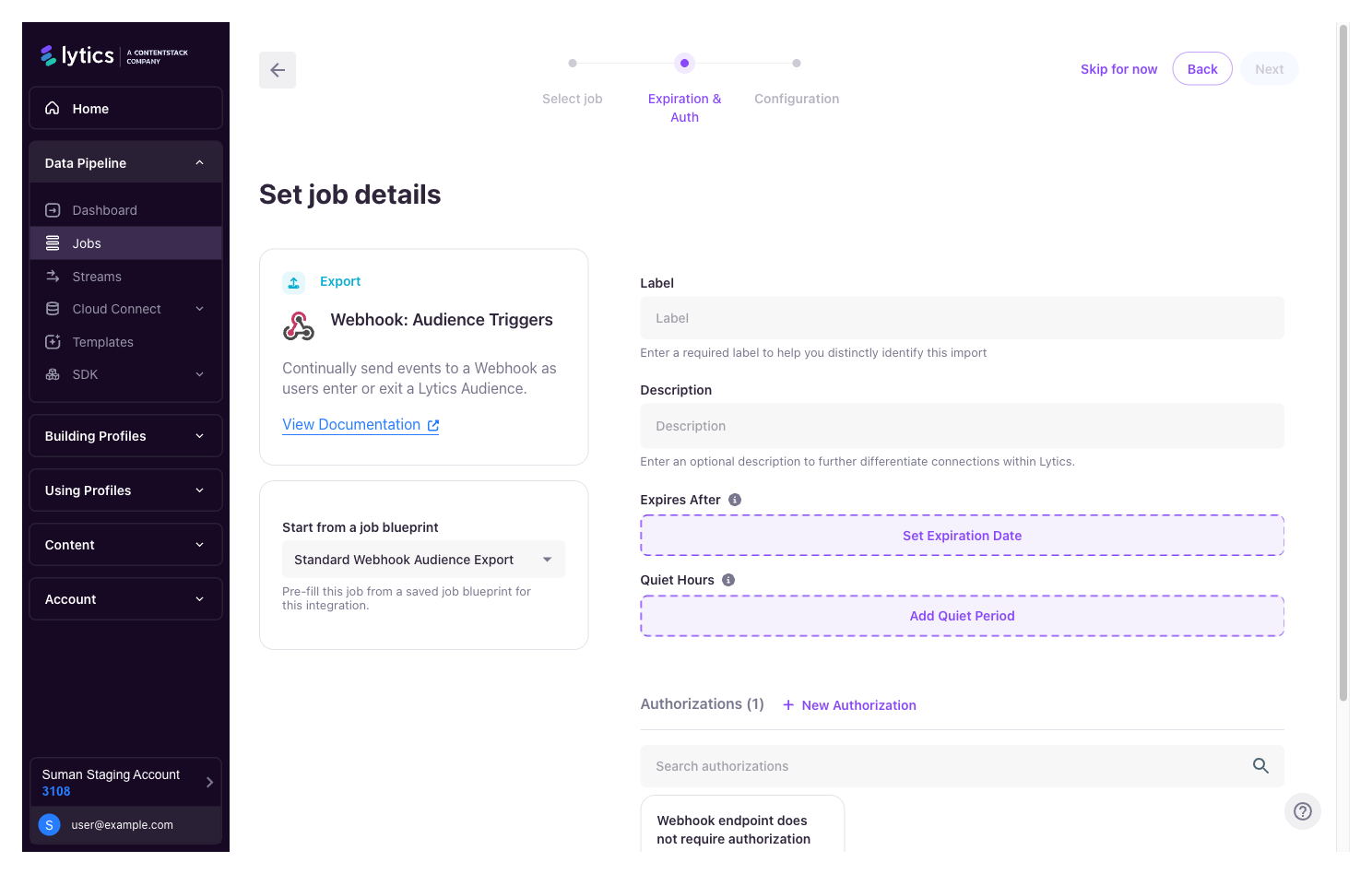
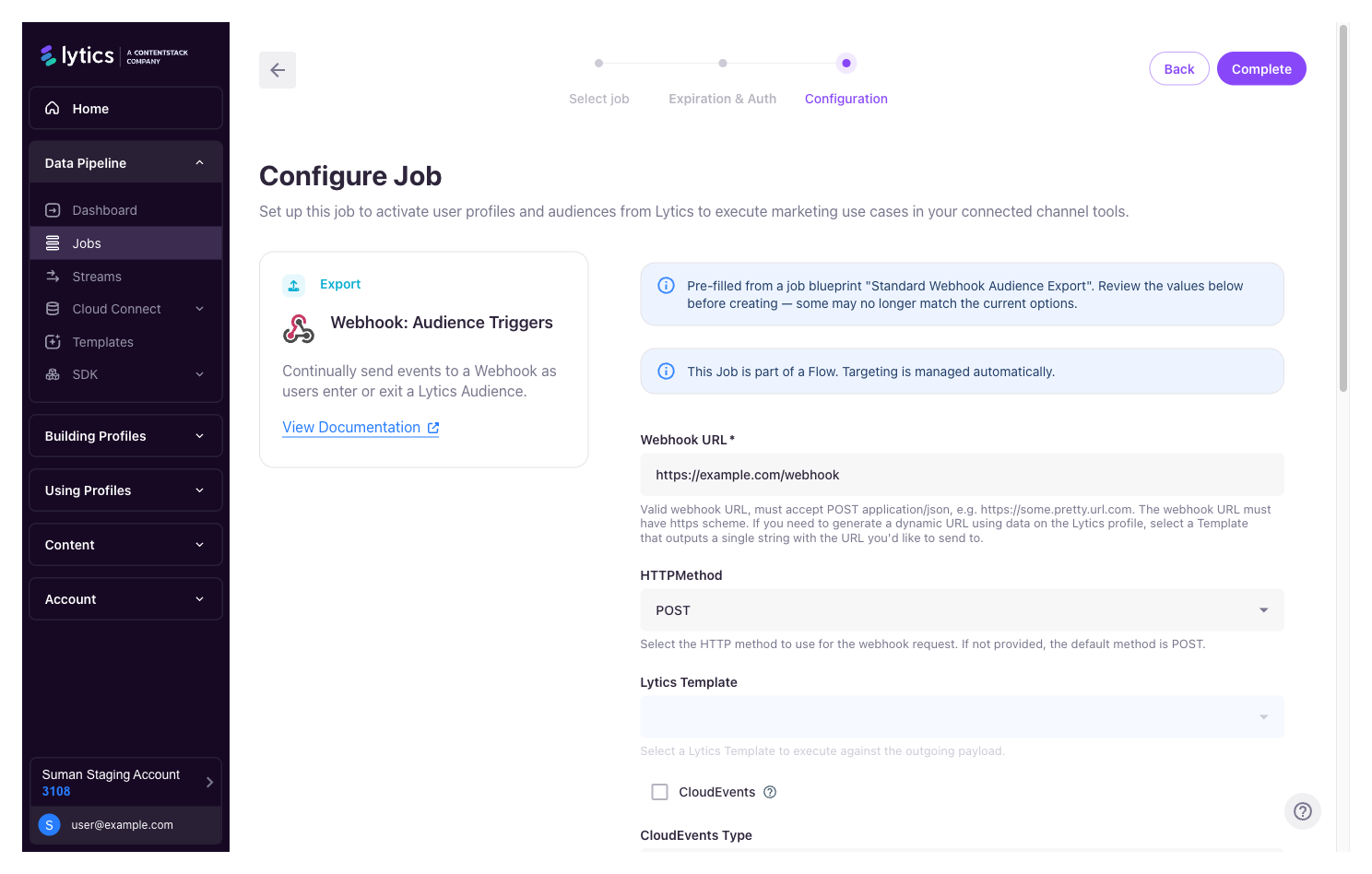
Review the pre-filled values, make any changes, and create the job as usual.
Permissions
Blueprints follow your existing job permissions: creating, using, editing, and deleting blueprints require the same access as creating, editing, and deleting jobs.
Updated 20 days ago