

Supertopics
A Supertopic groups one or more Topics into a single targetable unit. Individual Topics are precise but narrow; a Supertopic rolls the related ones together so you can act on an interest rather than a keyword.
Supertopics were previously called Affinities. Only the name changed — your existing Affinities are your Supertopics. The word affinity still describes the score Lytics gives each user, which is why this page reports an avg affinity score for a Supertopic. See Topics & Supertopics.
Viewing Supertopics
Select Topics under Content in the Lytics navigation bar. Your supertopics lists every Supertopic in the selected Context Layer, with its Name, Description, the Topics it contains, and when it was Last Modified. Each row also carries a delete action. Search narrows the list, and the page header counts your Supertopics and Topics.
Click any row to open that Supertopic's summary.
Creating a Supertopic
There are two routes, and both live on the Topics page.
Suggested Supertopics
Suggested supertopics offers groupings Lytics found in your content's topic graph, named after each group's most central Topic. Select the ones you want and choose Confirm & add selected, or dismiss the whole set with Reject all.
Suggestions depend on the shape of your taxonomy. An account whose Topics don't cluster strongly may see few suggestions or none, which is expected; create Supertopics by hand in that case.
Reject all hides the set for the rest of your session, and Show suggestions brings it straight back. Reloading the page restores them. New groupings can appear later as more content is classified.
Creating One by Hand
In Create a supertopic, type a name and click Create. Lytics then asks you to choose the member Topics, searching the Topics in the selected Context Layer. Blocked Topics are left out. You need permission to manage Topics.
A name another Supertopic already holds is refused before anything is saved.
Creating a Supertopic also adds its member Topics to Allowed Topics, pinning them into your taxonomy so they stay available even if they stop being common. The dialog states this before you commit. See Allowing and Blocking Topics.
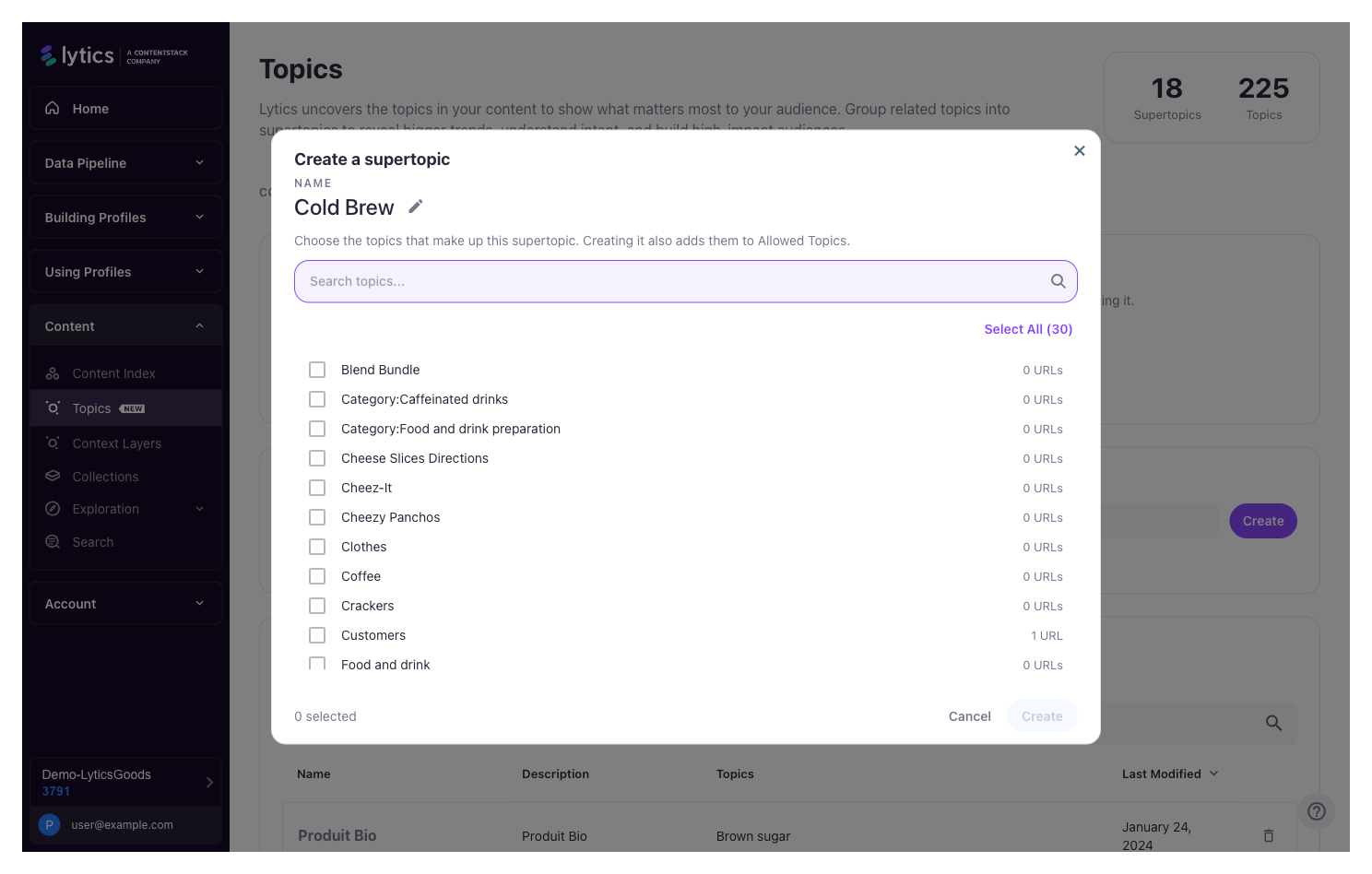
After saving, users are evaluated for the Supertopic as they engage with its Topics. Users without new activity for those Topics are reevaluated within a few days, so the figures on the summary page fill in over that period rather than immediately.
Supertopic Summary
Each Supertopic has a summary page reporting how much of your content it covers and how engaged your audience is with it. It has two tabs, Summary and Details, and the Supertopic's slug appears under its name.
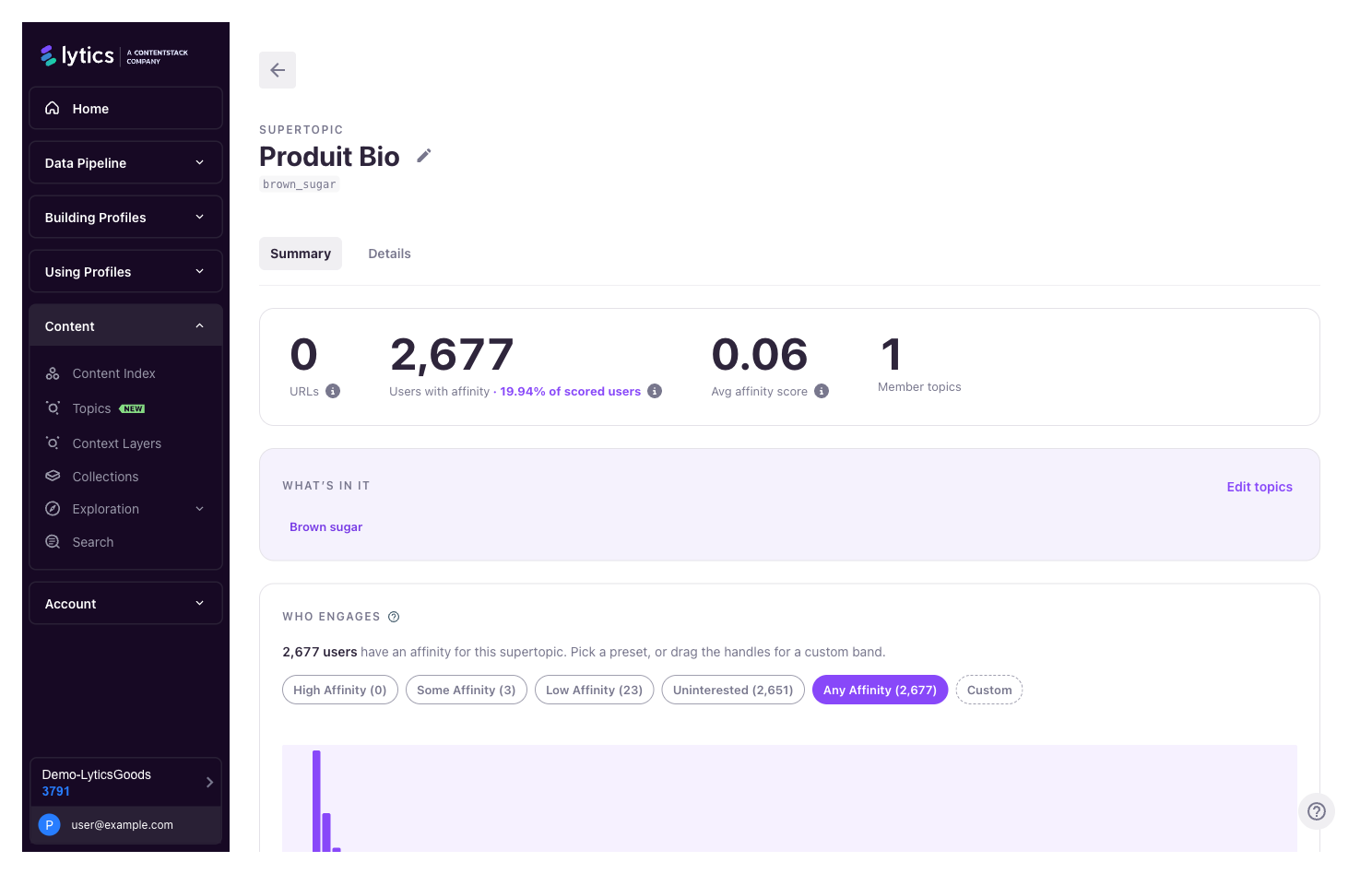
Metrics
- URLs: Pages Lytics scored as being about this Supertopic. Pages that only mention one of its Topics in passing don't count.
- Users with affinity: People carrying a score for this Supertopic, shown alongside the share they represent of everyone scored on any Supertopic.
- Avg affinity score: How strongly the average scored user matches this Supertopic, from 0 to 1.
- Member topics: How many Topics the Supertopic contains.
A figure Lytics could not measure reads as a dash rather than a zero, and if a request fails the page says which one — the URL count, the audience figures, or both.
What's In It
What's in it lists the member Topics. Edit topics opens a drawer to add or remove them; saving reports Supertopic updated.
Editing membership changes what the Supertopic means, so Lytics re-scores it. Until that finishes, the page says the figures are recalculating and shows a dash for URLs, Users with affinity and Avg affinity score in place of stale ones. Member topics keeps its live value, because the save already replaced the membership it counts.
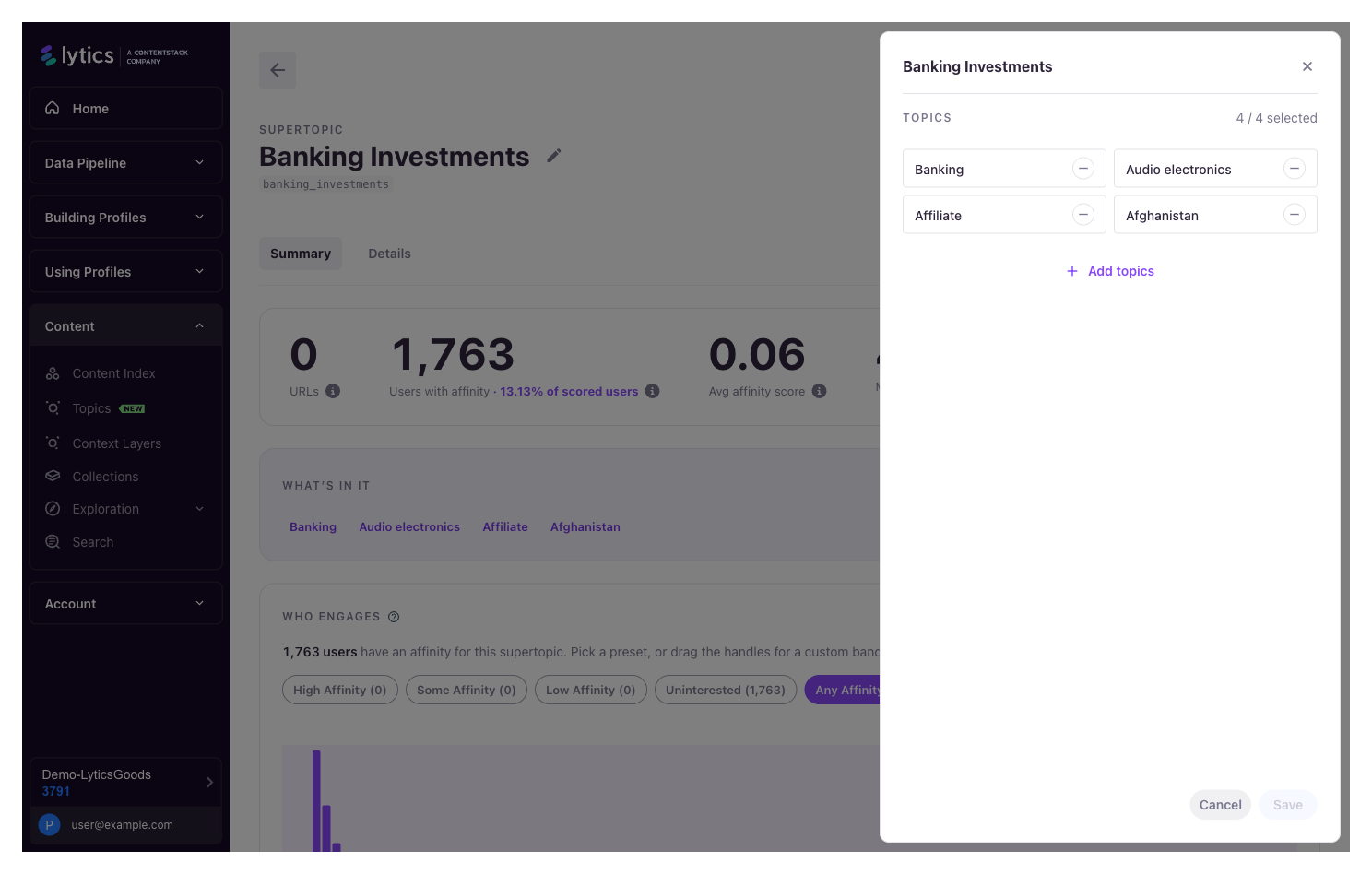
A Supertopic must keep at least one Topic, so removing them all blocks Save. The drawer offers Delete supertopic at that point, as the way out of a Supertopic you have emptied.
To delete one outright, use the delete action on its row in Your supertopics. Both routes ask you to confirm.
Editing requires permission to manage Topics. Deleting requires a separate, stricter permission, so a role that can edit a Supertopic may still be unable to delete it.
Who Engages
Who engages plots how your scored users are spread across the 0-to-1 range. Select a band by clicking a preset — High Affinity, Some Affinity, Low Affinity, Uninterested, or Any Affinity — or drag the two handles to set your own, which fills in the Custom chip.
Bands are half-open, so a score sitting exactly on a shared edge belongs to the higher band.
Once a band selects the users you want, Build audience creates the Audience without leaving the page, and Refine in audience builder hands off to the Audience Builder with the band already applied. Both require permission to create Audiences. This works the same way it does for a single Topic — see Segmentation With Topics.
Sample URLs
At the bottom of the Summary tab is a sample of the URLs carrying this Supertopic. Your content must be classified before it appears here; a Supertopic with nothing classified against it reads No URLs carry this supertopic yet.
Details Tab
- Description: The Supertopic's description.
- Supertopic ID: Its identifier in Lytics.
- Slug: Derived from the name.
- Context layer and Context layer ID: The Context Layer that scoped the figures on this page.
- Built from: How many Topics it was built from.
- Created and Last modified.
Renaming a Supertopic
A Supertopic's name is editable from its summary page title: click the name, or the pencil beside it, then type and save.
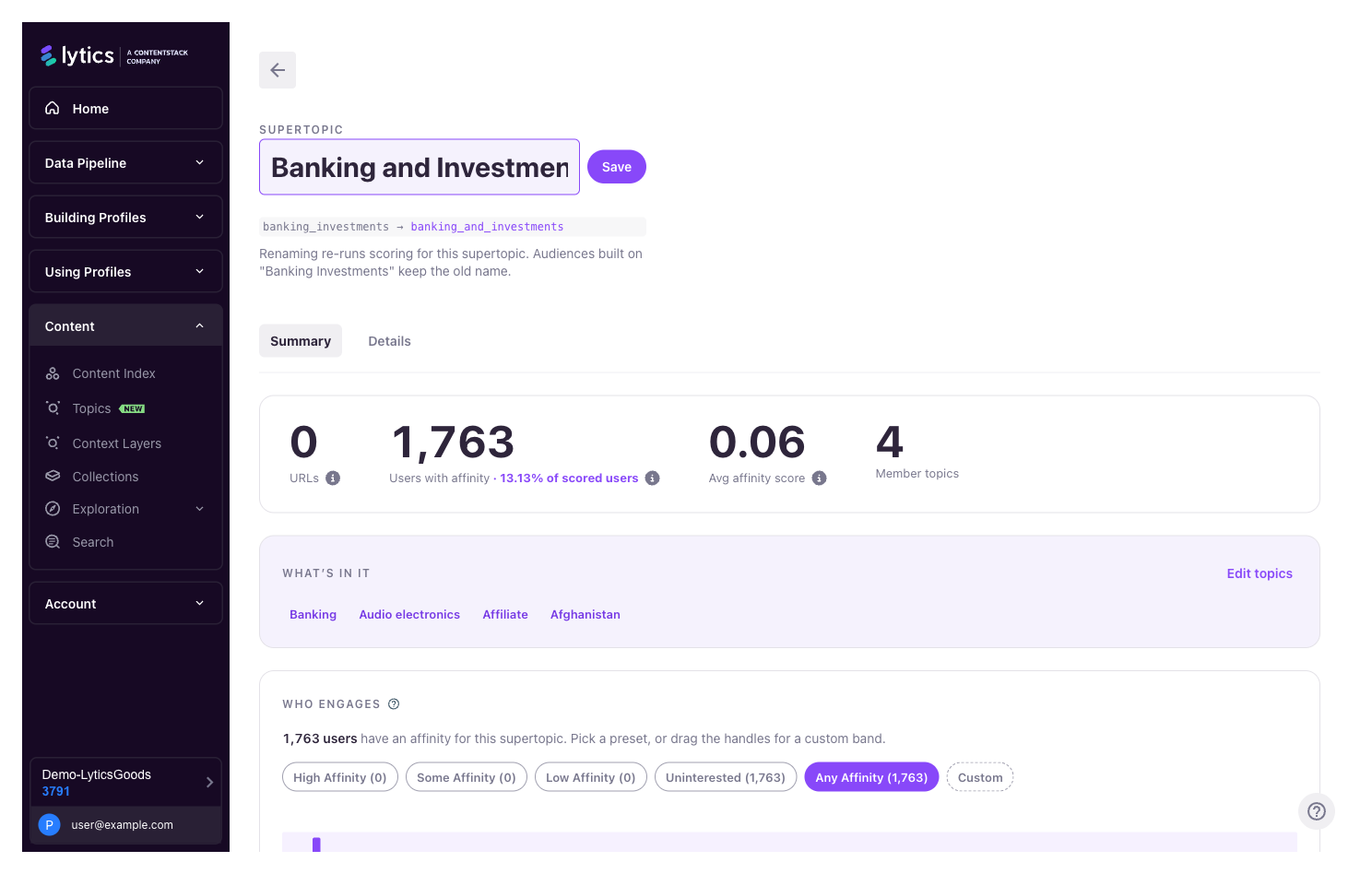
Before you commit, the page shows the slug that is about to change and states that renaming re-runs scoring for this Supertopic, and that Audiences built on the current name keep the old name. Scores are keyed to the name, so a rename re-keys every figure on the page — the metrics, the score distribution and the sample content each report that they are recalculating until Lytics rescores. That can take a few days, the same as a newly created Supertopic.
A name another Supertopic already holds is refused before any request is sent, ignoring case and surrounding whitespace. Renaming to a different casing or spacing of the Supertopic's own current name is allowed.
A name that would produce a slug another Supertopic already holds is refused as well. Slugs lowercase the name, turn spaces into underscores and drop punctuation, so Outdoor Sports! and Outdoor Sports both reduce to outdoor_sports and collide even though the names differ.
The slug follows the name. No route, link or bookmark resolves a Supertopic by its slug, so renaming breaks nothing. For a name containing non-ASCII characters the preview reads assigned when you save, because Lytics transliterates those server-side.
A Supertopic created long before this rename control existed may carry a slug that no longer matches its name. That is cosmetic — nothing resolves a Supertopic by slug — and renaming it again brings the two back into line.
Without permission to manage Topics, the pencil still appears in place but is disabled.
Updated about 1 month ago