

Schema Drafts
Stage, review, and publish batches of schema changes — fields, mappings, and identity key ranks — together.
Drafts, previously named Schema Patches, are managed through the
/schema/patchendpoints in the API, so this page uses "patch" when describing API resources and payloads.
Introduction
Schema Drafts are how you make schema changes in Lytics. Instead of editing one field at a time against the live schema, you stage fields, mappings, and identity key ranks into a single changeset — a draft — preview a complete diff against your live schema, and publish everything at once.
When a draft is applied, it creates a new published schema version. If anything goes wrong, you can revert to a previous version using the standard schema version history.
When to Use Schema Drafts
Use a draft when you want to:
- Onboard a new data source — add the fields and mappings that belong together and roll them out as a single reviewed change.
- Reorganize identity resolution — adjust identity key ranks alongside related field changes.
- Coordinate with a team — give each changeset a tag and description so reviewers know what it's for, and let multiple people work on separate drafts at once.
- Review before anything goes live — inspect a property-level diff of every change against the live schema, so nothing reaches the live schema without an explicit apply step.
Enabling Schema Drafts
Schema drafts are available to every account, but the workflow has to be turned on before you can use it in the UI. Until it's enabled, schema edits made in the UI go through the legacy draft-based editor.
An administrator turns the workflow on from Schema Studio → Drafts using the Enable button. Users without permission to edit account settings will need to contact their administrator to enable the feature.
Before enabling, note that:
- It's an account-wide switch. Once enabled, every schema change made in the UI goes through a draft, for everyone on the account. That covers changes you batch in the Schema Editor and single fields or mappings you save from their own pages (see Saving a single field or mapping). The legacy editor isn't available anymore.
- In-progress changes carry over. You don't need to publish or discard anything first — if the account has unpublished schema changes in the legacy editor, enabling the workflow automatically converts them into a draft. Nothing is lost: open the new draft to review, edit, or apply those changes whenever you're ready.
In rare cases the automatic conversion can't complete. If that happens, you'll see a message asking you to publish or discard your unpublished changes yourself and try enabling again. Your existing changes are left intact, so it's safe to retry.
Enabling drafts changes how everyone on the account edits the schema, so plan to switch over when your team is ready to adopt the draft workflow together.
How Schema Drafts Work
The schema draft lifecycle has five steps:
-
Create a draft — Each draft is tied to one table, such as
user, and starts out empty. Until you name it, it shows a placeholder like Draft created Aug 18, 2026. You can make a draft from the Drafts list, or let a field or mapping drawer make one when you save a change. -
Add changes — Add, modify, or mark for deletion any combination of fields, mappings, and identity key ranks within the draft. You can make as many changes as needed before moving forward.
-
Review the diff — Inspect the draft to see exactly what would change relative to the live schema, with property-level before/after values for every modified field and mapping, so you can verify each change before it goes live.
-
Apply the draft — When you're satisfied, apply the draft. Applying requires a tag — a short summary of the change, like a commit message subject — along with an optional longer description; both are recorded on the new schema version this publishes. From this point forward, incoming data is processed against the updated schema.
-
Revert if needed — If the applied changes cause issues, use schema version history to revert to a previous version.
You can update a draft as many times as needed before applying it, and set its tag and description at any point — up front from the draft's details drawer, or when you apply. You can also delete a draft entirely if you decide not to proceed.
Accessing Schema Drafts
From the Lytics navigation, open Schema Studio → Drafts. The list shows every draft in the account. Each row leads with the draft's tag, which opens the draft in the editor, with its description underneath. Drafts that haven't been given a tag yet appear with an italicized date-based placeholder (e.g., Draft created Aug 18, 2026). The other columns are:
- Changes — one chip per kind of object the draft touches: the total and the object type (for example, 3 Fields), then how many were added, modified, and removed, in blue, orange, and red. Items staged with no net change count toward the total only. A draft with nothing staged reads Empty draft.
- Author — who created the draft: you, or the creator's name or email.
- Created — when the draft was started.
- Updated — when the draft last changed.
You can filter the list, including by author, and sort by any column. It opens with the most recently updated drafts first.
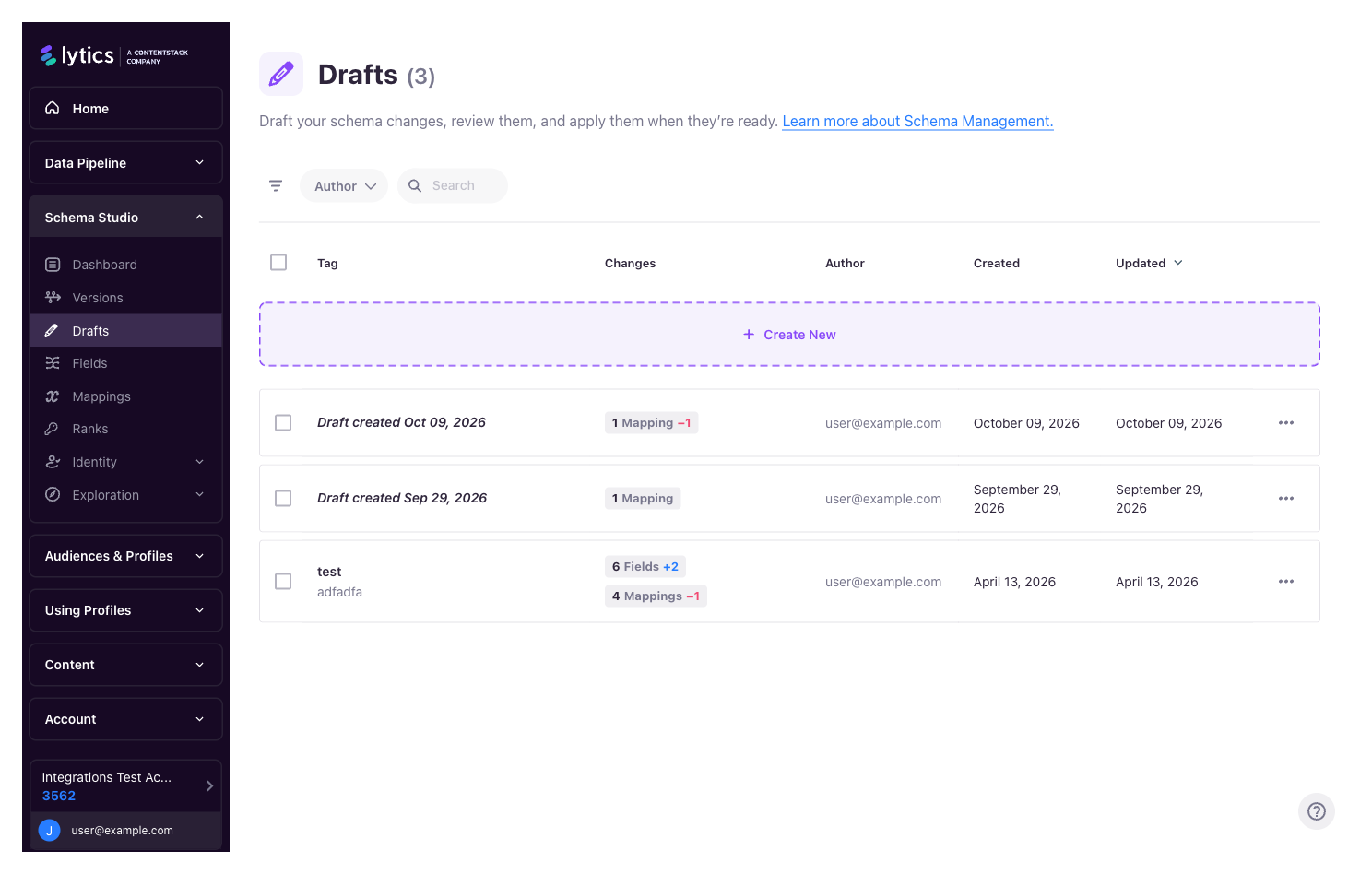
From the list you can:
- Create a new draft — choose the table it targets (e.g.,
user) and land directly in the draft editor. - Open an existing draft — continue editing a draft someone started earlier.
- Delete drafts — discard staged changesets you no longer need. Tick several drafts to delete them together. You can also delete a draft from inside the editor (see Naming a draft).
Saving a Single Field or Mapping
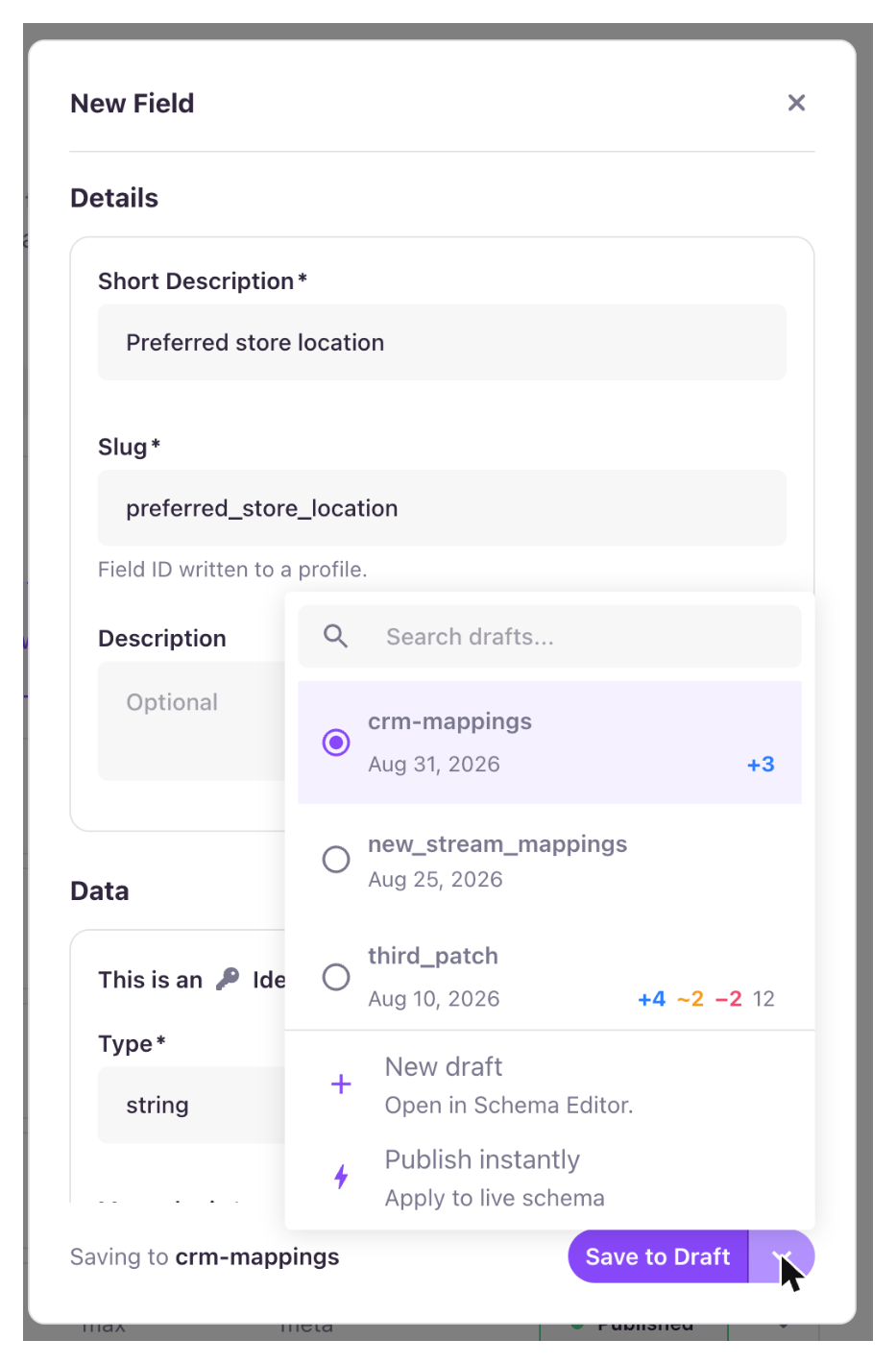
You don't need to open the Schema Editor to add a change to a draft. When you create or edit a field or mapping from its own page, the drawer footer decides where the change goes. Use the arrow on the split button to choose an action, then click the main button to run it. The text beside the button shows the destination, such as Saving to a draft's name or Publishing to the live schema.
| Action | What it does |
|---|---|
| Save to Draft | Adds the change to a draft you already have. The list shows your drafts, newest first, with a search box. Each row shows the draft's name, when it was created, and how many changes it already holds across fields, mappings, and identity key ranks. Pick one and it opens in the Schema Editor. |
| New draft | Starts a new draft with just this change and opens it in the Schema Editor, where you can name it and keep adding. When the account has no drafts yet, this is the default. |
| Publish instantly | Publishes this one change straight to the live schema, with no draft to manage. Click Publish, then give the version a tag (required, and filled in for you) and an optional description. Confirming creates a new schema version. Only users with permission to publish the schema see this option. |
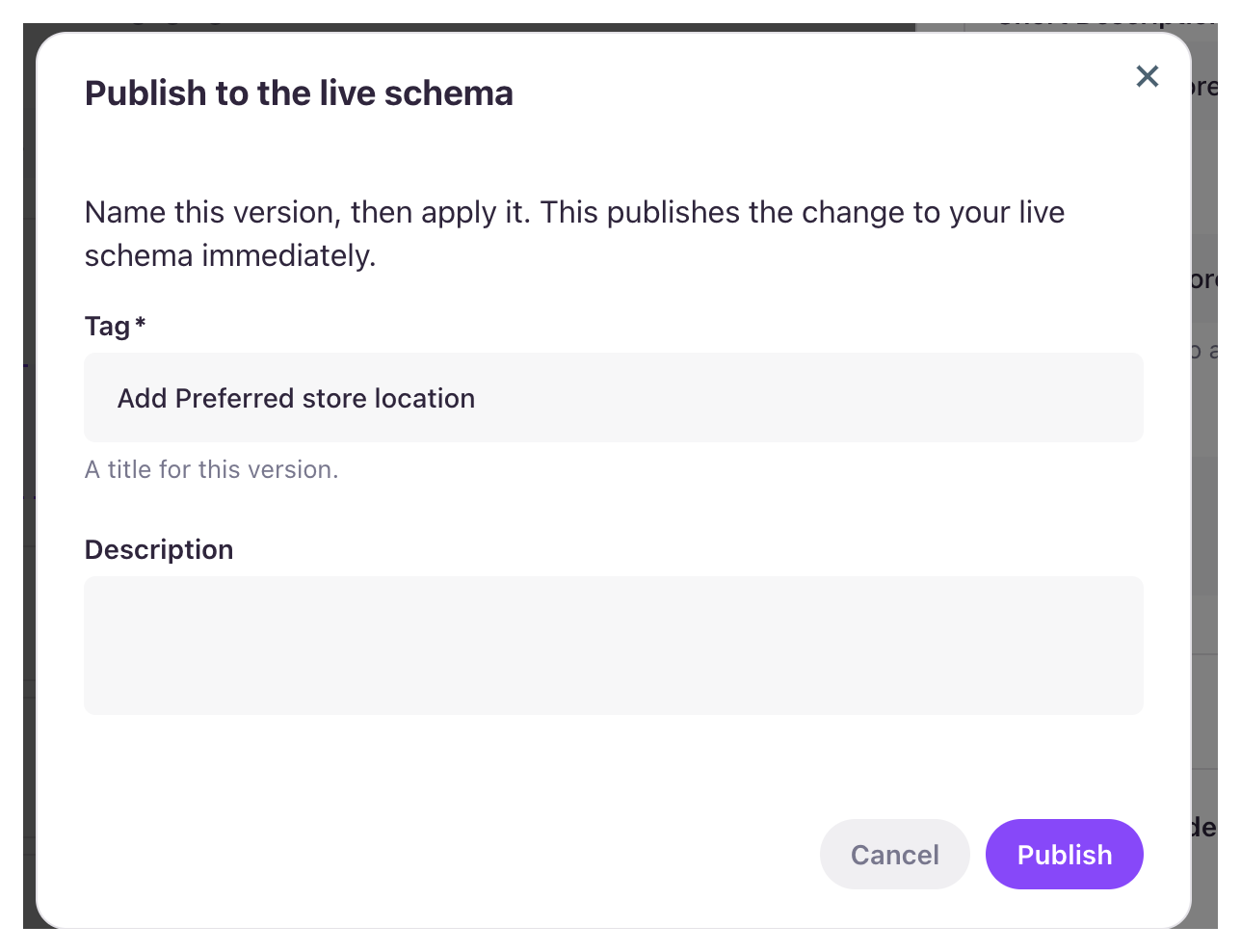
The footer remembers your last choice for the rest of the browser session, so a run of edits goes to the same draft without re-picking it. If that draft is gone, or you no longer have publish permission, the footer falls back to New draft.
When you create a mapping, fields already staged in the selected draft appear under Fields in Draft in the Field picker. That lets a mapping point at a field that isn't live yet. You can also create the field from inside the mapping drawer, and both go into the same draft when you save. See Creating the field from the mapping.
Deleting a field or mapping works a little differently. Confirming the deletion asks which draft it should go into.
The Draft Editor
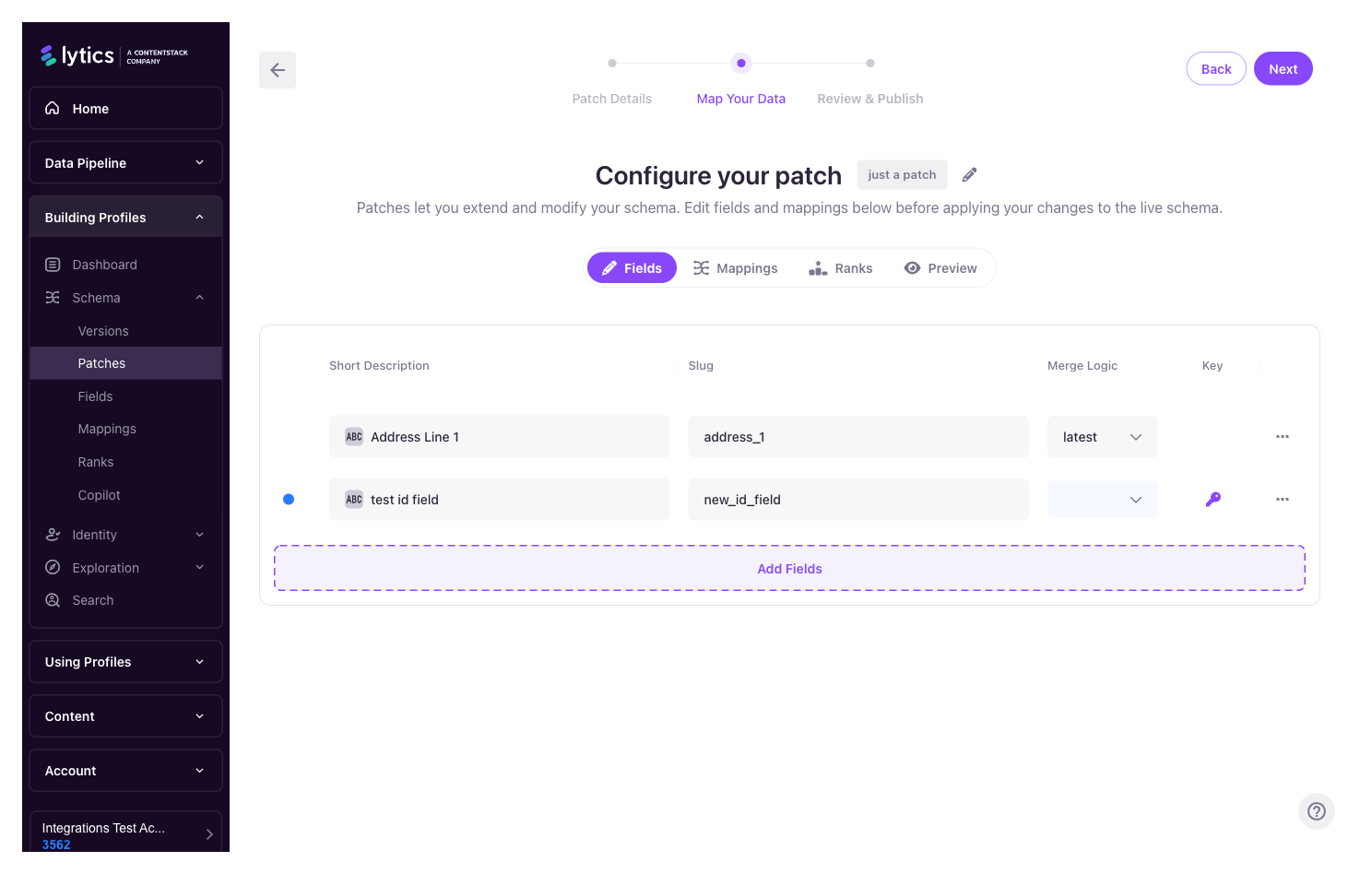
Opening a draft takes you into a two-step wizard — Edit Schema → Review & Publish — across the top of the page. The core work happens in the Edit Schema step, which is organized into tabs:
| Tab | What it's for |
|---|---|
| Fields | Add new fields, edit existing ones, or mark fields for deletion. Inline controls for data type, description, merge operator, capacity, keep days, and the other properties described in Fields & Mappings. |
| Mappings | Add or modify LQL mappings that transform incoming stream data into user fields. |
| Ranks | Reorder identity keys to change the priority used during profile resolution. See Identity Key Ranks. |
| Preview | A side-by-side diff of the draft against the live schema — every property that would change, with before/after values. |
| Try it | Run sample events through the draft merged onto the live schema and see the resolved profile before publishing. See Testing a Draft. |
| Advanced | A raw JSON editor for the draft, for power users. Access to this tab is permission-gated, so it only appears for users with the required role. |
Naming a draft
The editor header shows the draft's tag — or its date-based placeholder if it hasn't been named. Click the pencil icon next to it to open the Draft Summary drawer, where you can set or edit the draft's tag and description alongside its table, ID, and timestamps. The tag is free-form text up to 264 characters. Clearing the tag reverts the draft to its placeholder name.
The Delete draft button at the bottom of the drawer deletes the draft after you confirm, and returns you to the drafts list.
Naming a draft here is optional — if you skip it, you'll be asked for a tag when you apply the draft.
Working with Fields and Mappings
Within the Fields and Mappings tabs, each item carries an edit status that describes how it relates to the live schema:
| Status | Meaning |
|---|---|
new | Added in this draft — does not exist in the live schema. |
modified | Exists in the live schema, but one or more properties have changed. |
deleted | Marked for removal — will be deleted when the draft is applied. |
unmodified | Shown for context only. No changes from the live schema. |
When adding or updating a field, the same properties apply as when managing fields directly — data type, merge operator, capacity, keep days, and so on. See Fields & Mappings for details on field and mapping properties.
A mapping's Stream can't be changed once the mapping exists. To move a mapping to another stream, delete it and create a new one on the stream you want.
If you delete the only mapping to an identifier field on a stream, a Last Identifier for Stream dialog asks you to confirm. A stream without an identifier mapping can't attach its events to user profiles, and the draft can't be published until you add another one. Click Delete Anyway to proceed, and add a new identifier mapping before publishing.
Adding existing items to a draft
To modify a field or mapping that already exists, use Manage Fields or Manage Mappings at the bottom of the grid and choose Add Existing. Results can be filtered by type, identifier, stream, and category. Editable items surface first; non-editable items (e.g., system fields) are shown but cannot be selected. Use Select All to pull a whole filtered set into the draft at once.
"Add related" shortcuts
Click a field in the draft to jump into the mapping selector, pre-filtered to mappings that use that field. Click a mapping to find the field it writes to. This makes it straightforward to build complete, self-consistent changesets.
Undoing a change
Each item in the draft can be reverted independently without discarding the rest of the draft. For example, if you've added three fields and decide one of them isn't ready, remove that one field's changes and keep the other two.
To take an item out of the draft, choose Discard from patch from its row's actions. On the Fields and Mappings tabs you can also tick several rows and choose Discard from patch from the bar that appears, to take them all out at once. On Mappings, a stream heading's checkbox selects every mapping under that stream. Mark for deletion is a different action: it adds the removal of a live field or mapping to the draft.
If you don't set a
managed_byvalue when adding a field or mapping to a draft, it defaults to the current user.
Identity Key Ranks in a Draft
Identity key rank lists — which control the priority ordering of identity keys used during profile resolution — can also be staged in a draft, from the Ranks tab. Bundling rank changes alongside field and mapping updates ensures everything is reviewed and applied together.
See Identity Key Ranks for more on how rank ordering affects identity resolution.
Previewing a Draft
The Preview tab is the gate between "staged" and "published." It shows:
- Every field, mapping, and rank change in the draft, grouped by type.
- Property-level before/after values for modified items.
- Status pills on each item (
Added,Modified,Deleted) so you can scan the shape of the change at a glance. - Changes to an identifier field's identity optimization settings, such as compact over and compact after days, as their own rows.
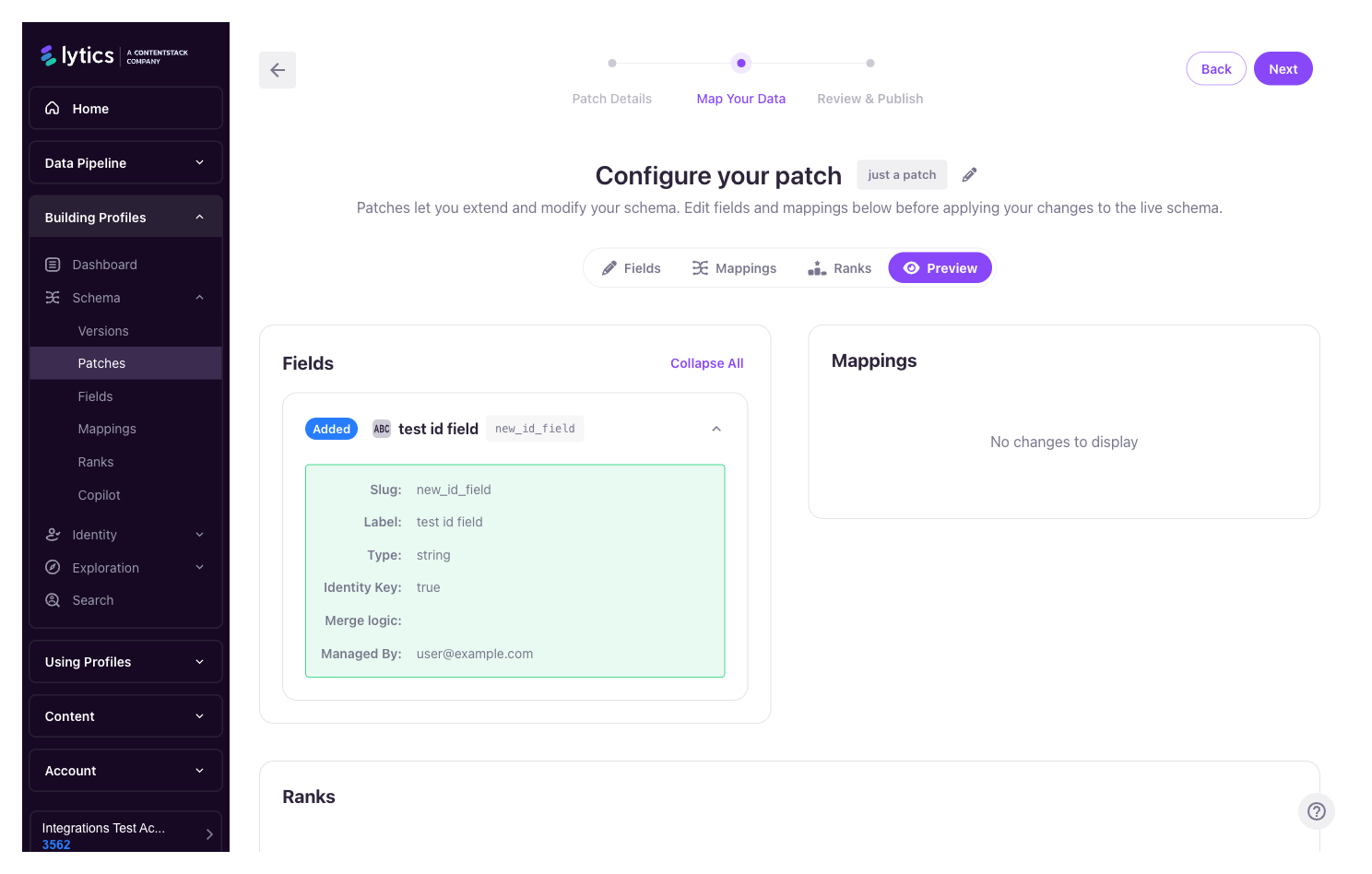
Nothing in this tab affects the live schema — it is purely a read-only review surface.
Testing a Draft
The Try it tab runs sample events through the draft and shows the profile they resolve to, so you can confirm a change does what you intend before applying it. Your events run against the live schema with the draft's changes merged in, the same merge that publishing would do. Nothing is published, and nothing is written to any profile.
Try it is available once the draft has at least one mapping. There's nothing to evaluate without one, so until then the tab is disabled.
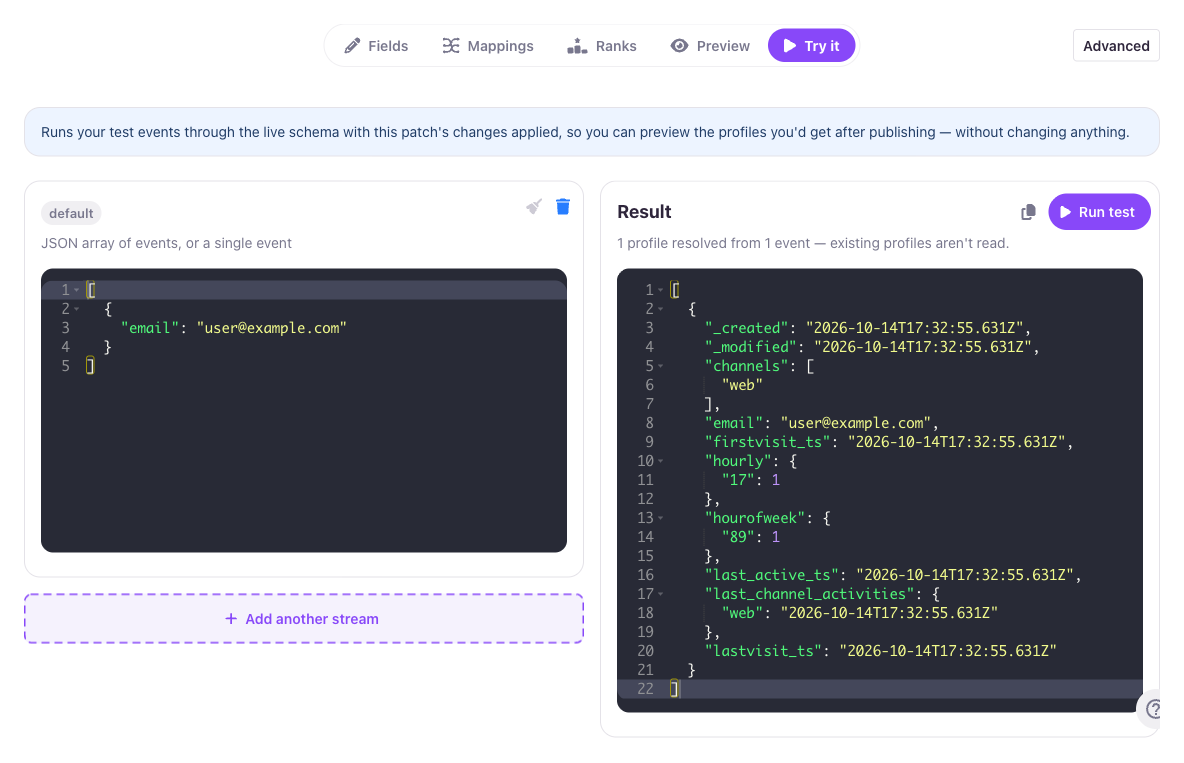
Sample events
Each stream the draft's mappings target gets its own events box, pre-filled when you open the tab:
- The sample is synthetic, generated from the draft's own mappings with realistic, resolvable values (an
emailfield gets an email, a hashed field gets a hash). It includes the stream's highest-ranked identifier so the event resolves to a profile. Try it never reads your real stream data, so no customer data is shown. - Each box holds a JSON array of events (or a single event object). Format pretty-prints it.
- Edit or replace the samples freely. Events are only evaluated against the stream whose box they're in.
Running a test
Choose Run test to evaluate the events. The resolved profile comes back as JSON, and a summary calls out which fields the draft adds or changes relative to the current live schema, so you can verify the draft does what you intended.
Try it flags problems up front, rather than after a failed run:
- A stream that maps no identifier is flagged, since its events can't resolve to a profile.
- A stream whose events touch none of the draft's mapped fields is flagged as not contributing to the result.
- If a mapping's guard filters out every event, the result is empty.
Running a test never writes to the live schema or to any profile.
Publishing a Draft
When you're satisfied with the preview, apply the draft from the Review & Publish step. The apply dialog asks for:
- Tag (required) — a brief summary of the schema changes, up to 264 characters. If the draft already has a tag, it's pre-filled; otherwise you supply one here.
- Description (optional) — a longer explanation of the change.
Applying creates a new schema version — carrying the tag and description — that contains all of the draft's changes, and incoming data is processed against the updated schema from that point forward.
A draft with no changes can't be applied: the Apply button is disabled with a "There are no changes to apply" notice until the draft contains at least one change.
If something goes wrong after publishing, revert to a previous version using the standard schema version history — no need to manually undo each change.
Drafts that target the
contenttable publish immediately on apply, without a separate review step. User-table drafts follow the full stage → preview → publish workflow.
Managed Workflows and Drafts
For accounts with drafts enabled, LQL workflows that need to modify the schema (for example, managed integrations that add new fields as they discover them in incoming data) will create a draft for you to review, rather than writing the changes straight into the schema. You'll see these drafts appear in the list with an identifying tag; open, review, and publish them as you would any manually-created draft.
Permissions
- Create / edit a draft — requires the
schema:editpermission. - Delete a draft — requires the
schema:deletepermission, from both the drafts list and the Draft Summary drawer. - Publish instantly from a field or mapping drawer — requires the schema publish permission. Without it, the footer offers only Save to Draft and New draft.
- Enable drafts for the account — requires permission to edit account settings.
- Advanced tab (raw JSON) — separately gated for power users.
Related
- Schema Versions — Publishing and reverting schema versions
- Fields & Mappings — Managing individual fields and mappings
- Identity Key Ranks — Identity key ranking and priority
Updated 6 days ago